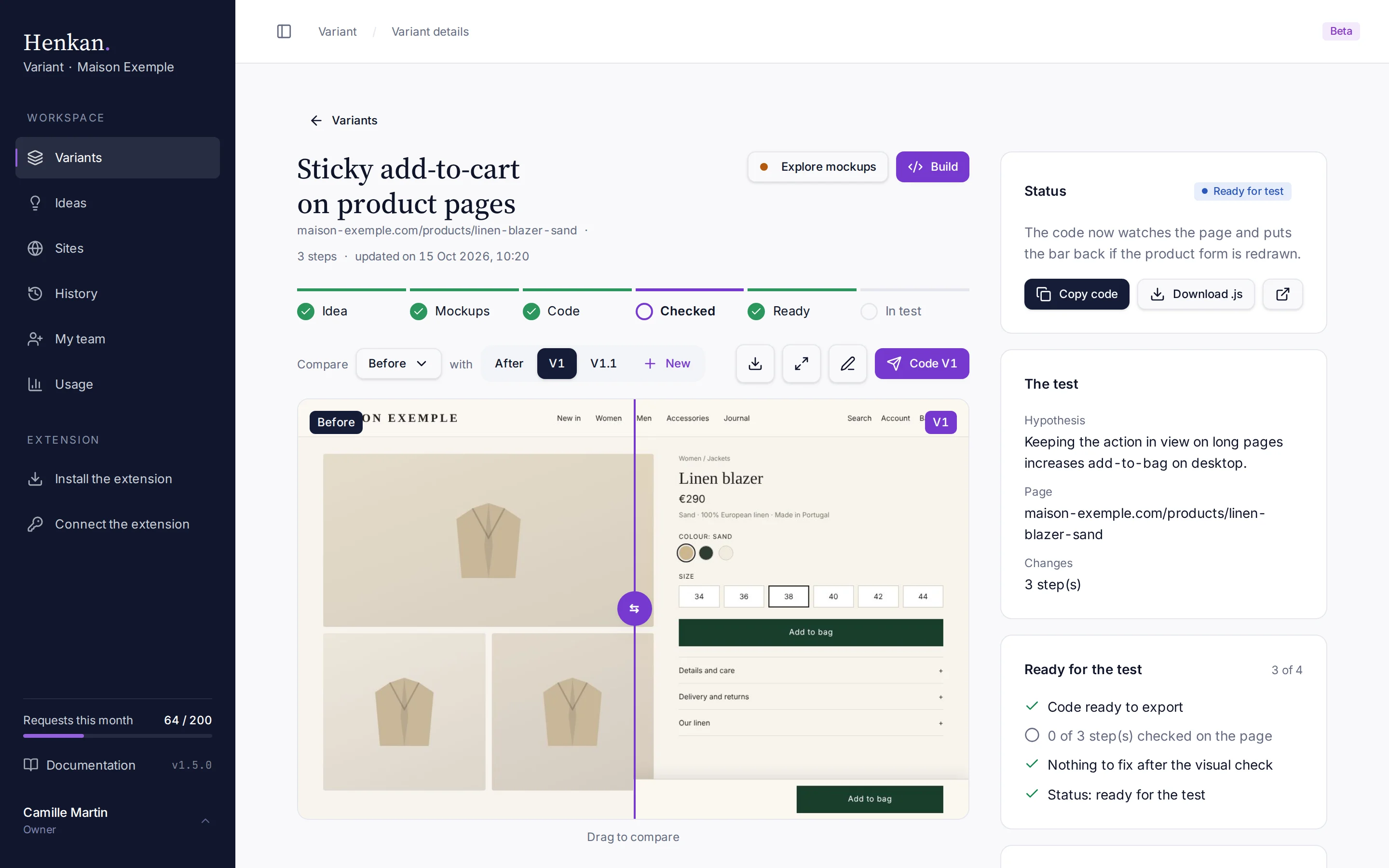
A variant's page shows everything about it: the before/after comparison and its design versions, its steps, conversation, code and team notes. Open it from the Variants page.
The comparison and the tabs take the main column. The status, a summary of the last change, the code buttons and the list of steps sit in the column on the right.
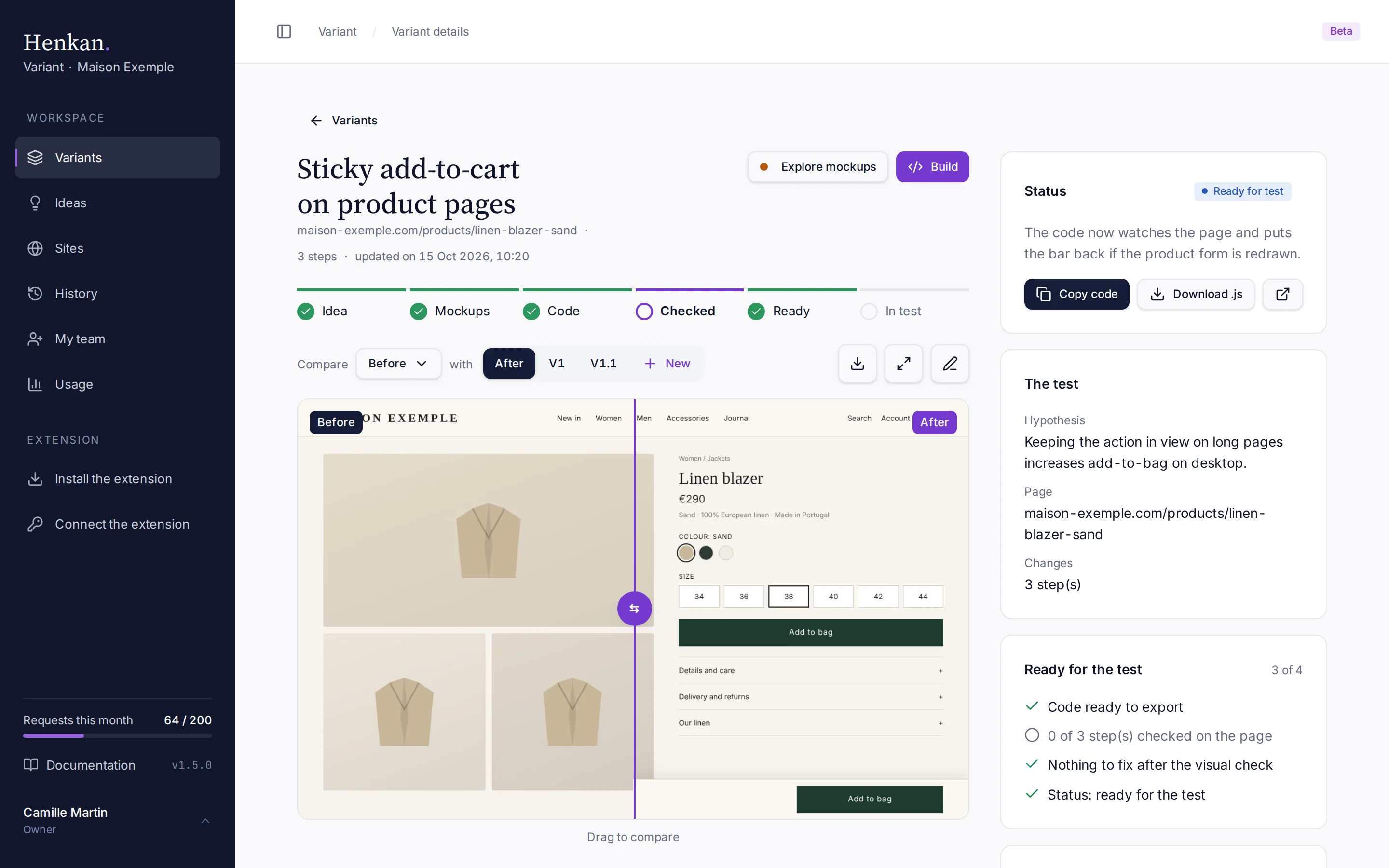
Under the name, you see the page the variant was made on (select it to open the page), the number of steps and the date of the last update. In the right column, the button with the arrow icon opens the page in a new tab.
The test at a glance#
Under the name, a line follows the test from start to finish. The next stage to reach is outlined.
| Stage | Reached when |
|---|---|
| Idea | Ideas were made for the page. |
| Mockups | Design versions exist. |
| Code | The variant has at least one step. |
| Checked | Every step was checked on the page. |
| Ready and In test | The status says so. |
Explore mockups and Build open the Studio on its Explore side (image mockups) or its Build side (code on the real page).
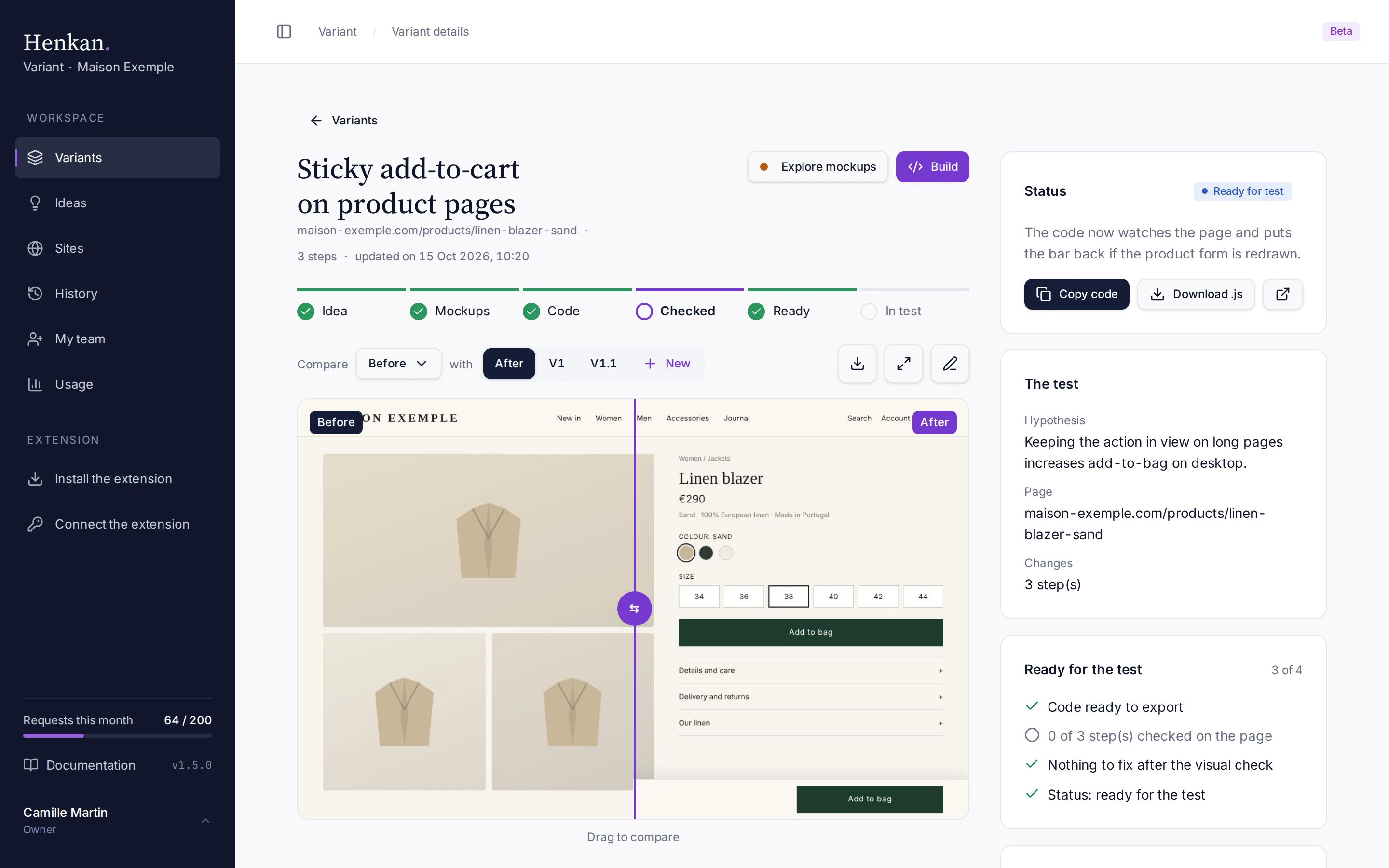
In the right column:
- The test. The hypothesis (from the applied idea), the page and the number of changes.
- Ready for the test. Code ready to export, steps checked on the page, points the visual check could not fix, and the status. It counts how many of the four are done.
Rename a variant#
- Edit the name Select the name, or the pencil icon next to it.
- Type the new name Press Enter to save, or Escape to cancel.
Change the status#
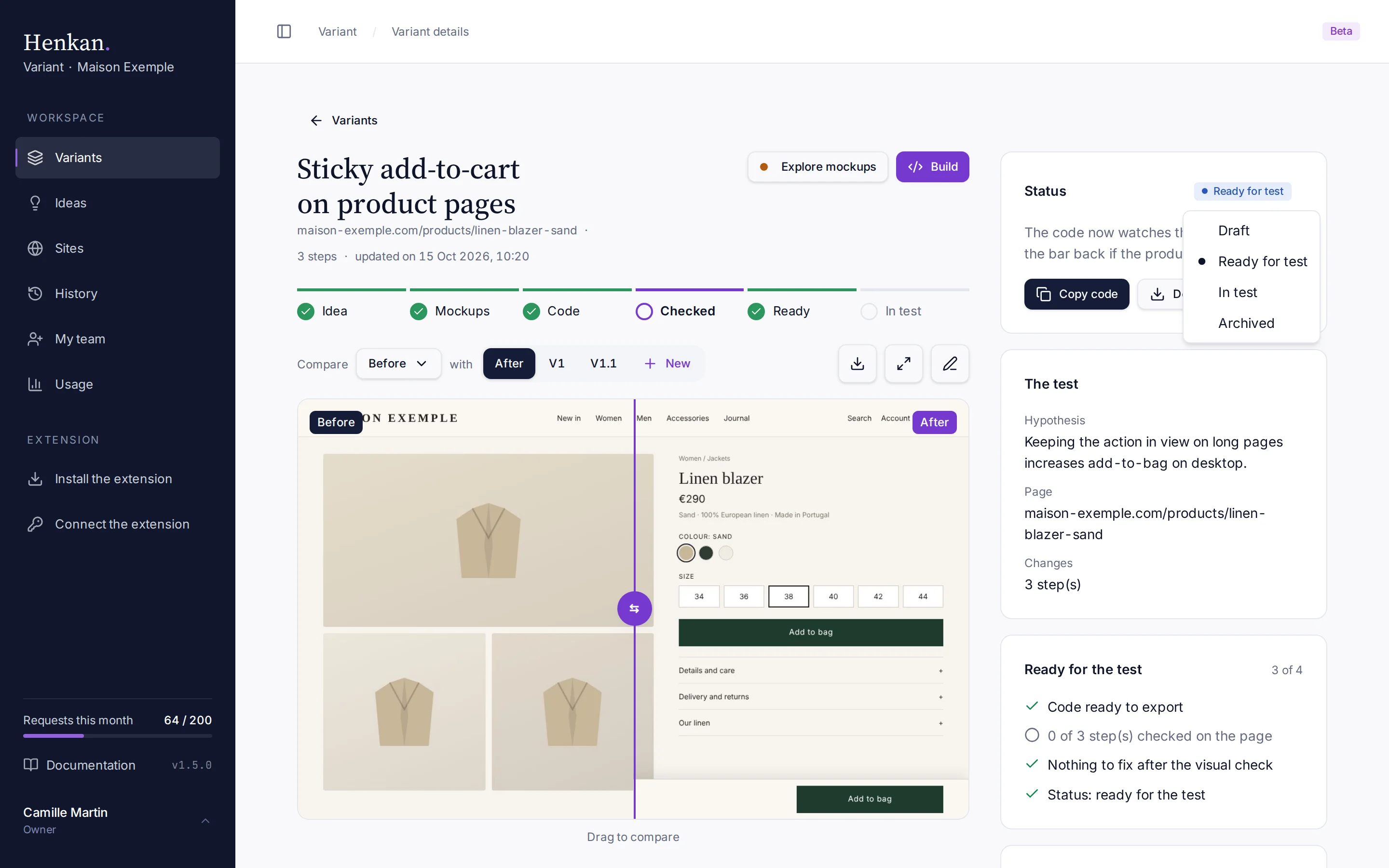
- Open the status menu Select the status in the right column.
- Pick a status Choose Draft, Ready for test, In test or Archived. The change is saved at once and visible to the whole workspace.
Compare before and after#
The comparison shows the page before the change on the left and after it on the right. Drag the handle to move the split, or focus it and use the arrow keys.
When the variant was captured on a phone, the two screens are shown side by side at phone size, so you see the change without scrolling. Choose Slider above them to compare with the handle instead.
Above the comparison, the download icon saves the two screens shown as image files. On a phone capture, each screen also has its own download button.
Screenshots appear after the extension syncs the variant. Until then, the page shows No screenshots yet.
Design versions#
Design versions are AI-generated mockups drawn from the After screenshot: close to the page, but not pixel-exact. Nothing changes on the site until you code one.
They live in the comparison itself: Compare [Before] with [After, V1, V2…].
- Pick what to compare Choose a version (After, V1, V1.1…) to show it on the right. The menu on the left (Before by default) picks the other screen, so you can also compare two versions. A coded version shows a check mark.
- Make new versions Select New, then 3 automatic variations for three ideas at once, or Draw my change in the Studio to explain exactly what you want.
- Review them Select the full-screen icon (see below), or the pencil icon to retouch the version shown in the Studio.
- Code it In the Studio, select Build V… to turn the version into code there. From the comparison, select Code V… to send it to the extension instead.
Code a version in the extension#
After Code V…, the version is marked Sent to the extension. Open the variant's page in Chrome with the Variant side panel (extension 0.9.0 or later): a card Design V… sent from the app offers Code it.
Variant reapplies the variant's existing steps if needed and codes the design as a new step. The version is then marked Coded. From extension 0.9.1, the marks and references you added in the Studio go along with it.
Links, quota and sharing#
- Links. The version shown is part of the page address (
?version=…), so a link opens on it. - Quota. Each version counts as one image in your workspace's monthly image allowance.
- Shared. Versions are saved with the variant, so everyone in the workspace sees them.
Full screen#
The full-screen icon shows every screen (Before, After and each version) on a dark background. Use the arrows or the ← and → keys to switch, and Escape or the close button to go back.
Desktop captures show one at a time, as large as possible; phone captures show side by side with the comparison's left screen. Switch between Single and Side by side at the top. Code V… is there too.
Studio#
The Studio is a full-screen workspace made to explain a change precisely. Open it with Open in Studio (the pencil icon above the comparison) or New › Draw my change in the Studio. Select Variant at the top left, or press Escape, to go back.
It has two sides, switched at the top, both with the conversation on the left and the page on the right:
| Side | What it is for |
|---|---|
| Explore (orange) | Image mockups of the page, to see an idea quickly. Nothing you make here goes into the test. |
| Build (blue) | Code on the real page. This is what goes into the test. |
Build V… at the top right of Explore takes the mockup shown to Build: it opens large next to the Original, ready for Convert to code. The arrow next to it also offers Code it in the extension.
Make a design version#
- Choose a screen Pick a thumbnail at the top: Before (the live page), After, then every design version (V1.1 is shown under V1). A green tick marks a coded version. Draw on After to improve the variant, on Before to start again from the live page (the result is the next version, for example V3), or on a version to refine it.
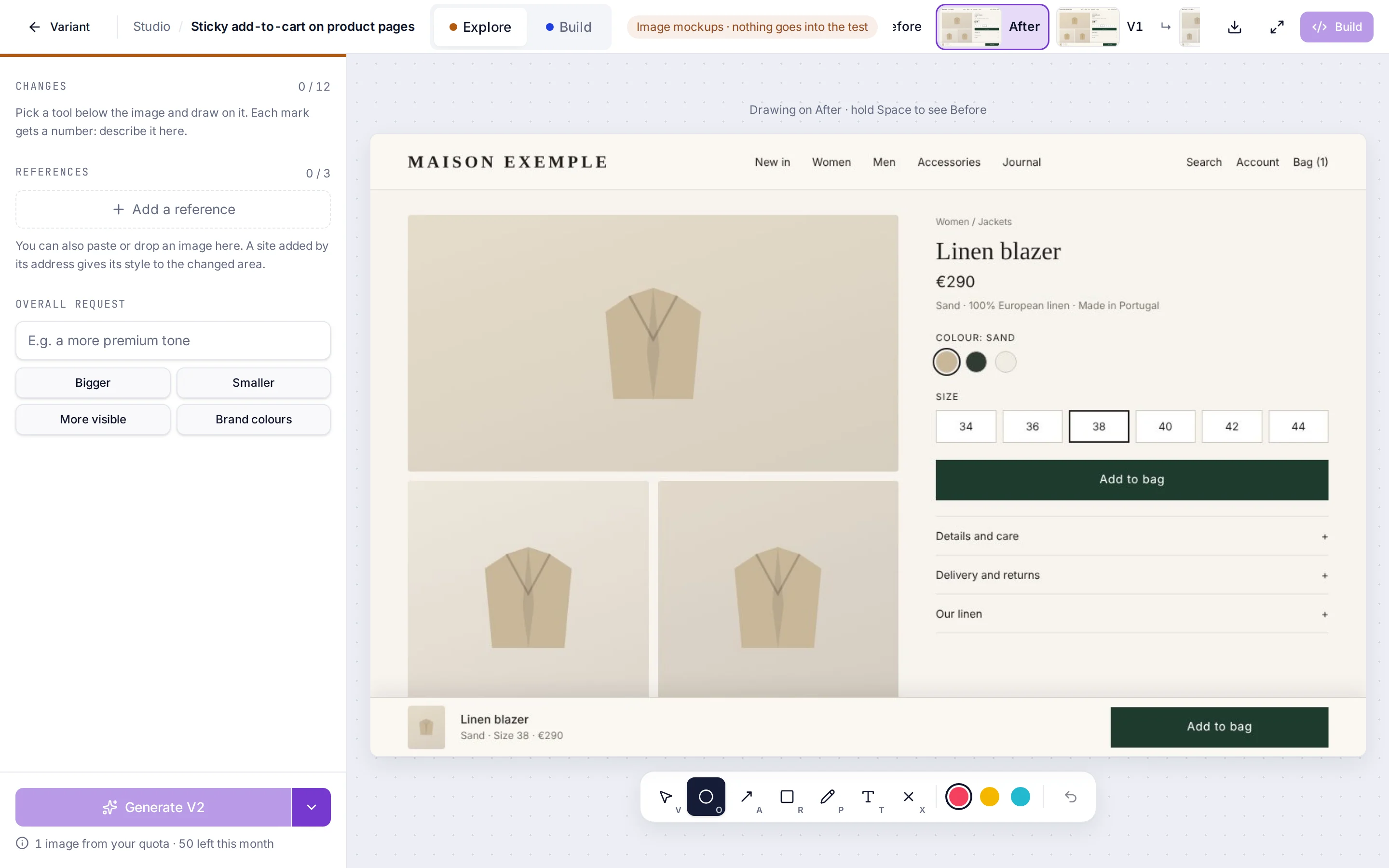
- Draw your change Pick a tool and a colour in the bar under the image, then draw on the capture. Each mark gets a number and a small box to describe it.
- Adjust a mark With Select (V), click a mark to move it, resize it from its corners, change its colour, edit its note or delete it (Delete key).
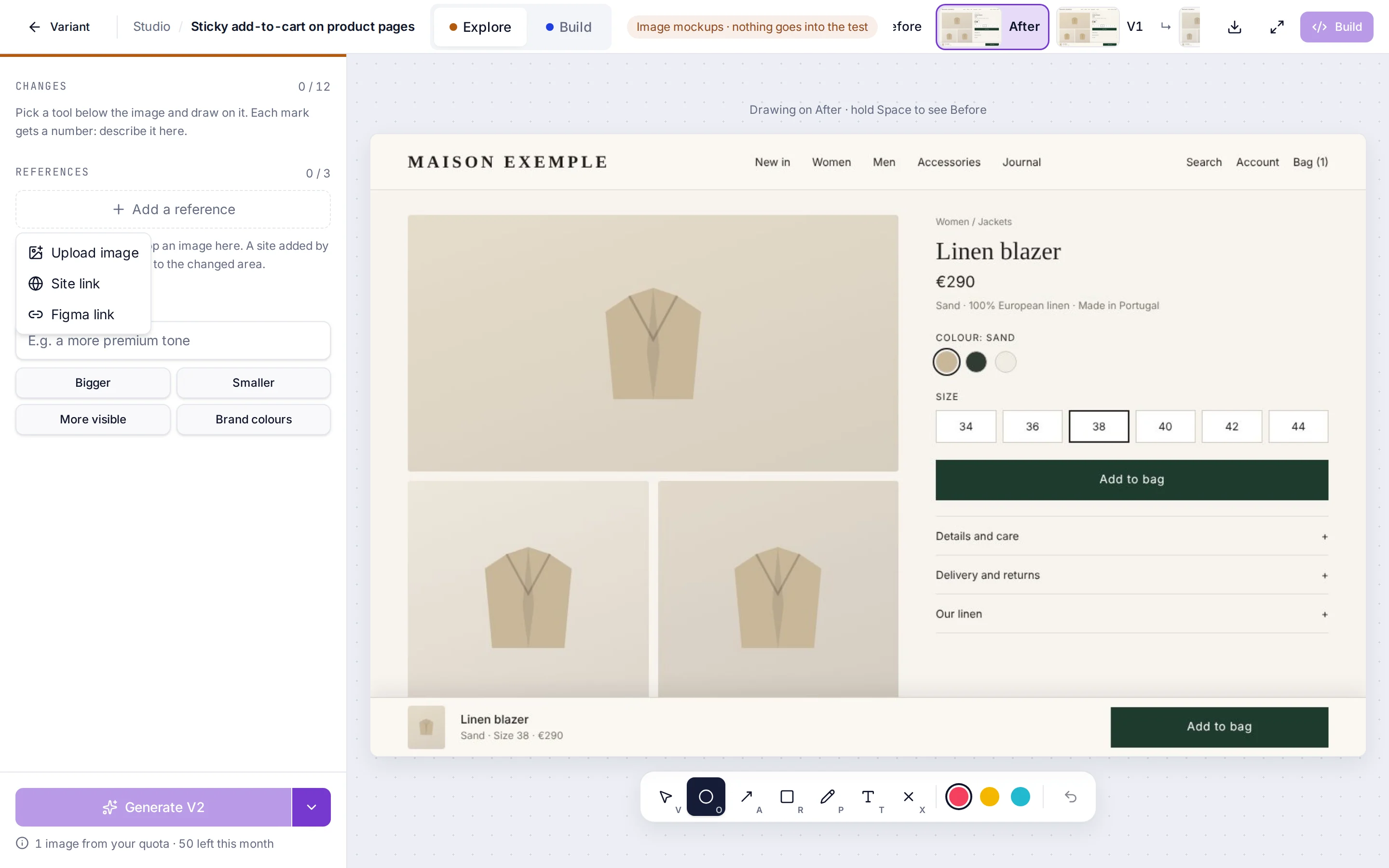
- Add references Under References, Add a reference offers three kinds, up to 3 in all. You can also paste or drop an image anywhere in the panel.
- Generate Add an Overall request if needed, then select Generate V…. The new version opens in about 30 seconds.
Drawing tools#
| Tool | Key |
|---|---|
| Circle | O |
| Arrow | A |
| Box | R |
| Freehand | P |
| Text note | T |
| Cross out (to remove) | X |
- Up to 12 marks. A crossed-out element is removed even without a description.
- Only change the marked areas. On when there are marks, so the rest of the page should stay the same. Turn it off to let the AI touch up the whole page.
- Changes. The list shows every mark; selecting a line selects the mark.
- Undo. Cmd/Ctrl + Z removes the last mark.
- Peek. Hold Space to see the page Before.
References#
| Kind | What it does |
|---|---|
| Upload image | A screenshot of a competitor, a mockup or a photo. Large screenshots are made lighter before they are sent. |
| Site link | Variant reads the site and gives its style (typefaces, colours, shapes, spacing) to the area you change. The style it understood is shown under the reference. |
| Figma link | The link of a Figma frame, once Henkan has connected Figma. |
Each reference is listed with its name: @staylane.example for a site, @image-1, @figma-1. Type @ in the Overall request to cite one, for example "the search like @staylane.example". While a reference is added, one line shows what is happening (for example "Reading staylane.example…"), and the new reference or mark slides in highlighted.
An address written in the Overall request is read the same way as a site link when you generate. Some sites block this: Variant then searches the site on the web, or marks the reference Site unreadable · assumed style and says so. A screenshot of the site added as an image works better.
Generate#
The four suggestions under the Overall request each add a sentence to it. The arrow next to Generate V… switches to 3 different versions.
The image dims while the version is made (about 30 seconds), and the line below shows how many images of your monthly allowance are left. If a new version looks almost the same as its starting screen, the Studio tries once more with a firmer request (one more image) and tells you if it still barely changed.
Refine a version#
With a version shown, the panel starts with the request that made it.
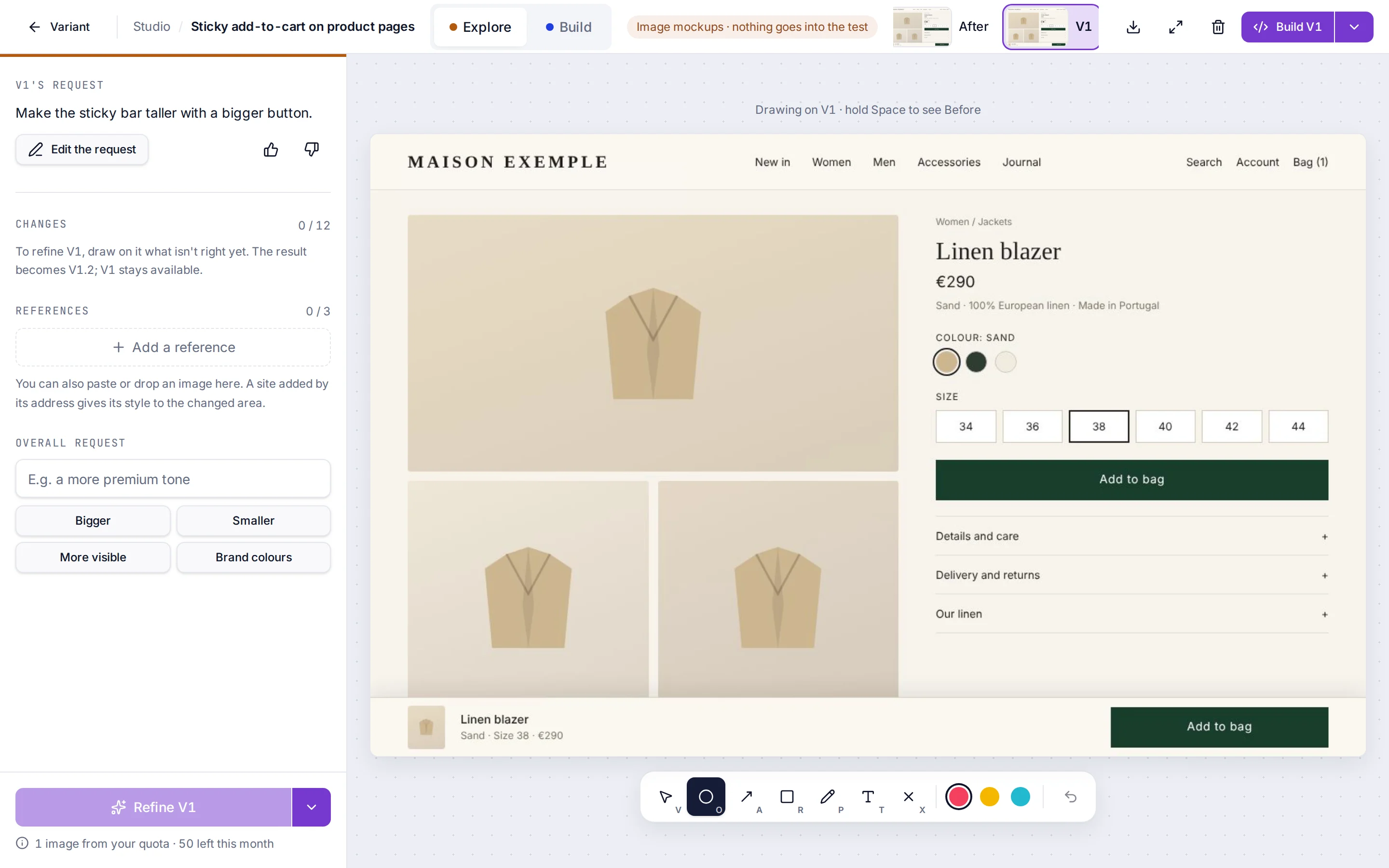
- Refine V… Draw on the version what is not right yet and select Refine V…. The result is a new version under it (V1.1, V1.2…); the version you started from stays.
- Edit the request Puts that version's marks, references and request back on the screen it came from. Change them and select Redo V…: the new image replaces the old one and keeps its name. Cancel goes back without changing anything.
- Thumbs up / down Tell Henkan whether the version is useful. It helps improve the results.
Your marks and references stay with the version they produced and go with Build V…, so Claude sees exactly what you meant. A version started from Before is coded as a new step after the variant's existing steps.
From the Studio, you can also download the screen shown, view it full screen, delete a version, or build it.
Build in the Studio#
Build at the top of the Studio shows the page itself instead of a screenshot. It is an editable copy that the extension saves after each step (extension 0.10.0 or later). You describe changes on it, as in the side panel, without going back to the site; Explore goes back to the image mockups.
When the site has a profile on the Sites page, Site profile · name vN above the request box shows it. Claude gets the site's colours, fonts, components and your team's rules with each request, and the visual check uses them too. Change picks another profile for this page.
The canvas and its frames#
The Studio is laid out like a design tool, on a light dotted canvas. The page is shown as frames side by side, each with its name above it:
| Frame | What it shows |
|---|---|
| Original · Desktop | The variant as saved, without the Studio's changes. |
| Variant · Desktop | The frame you work in. |
| Variant · Mobile | 390 px wide, where the site's own mobile layout applies. |
Image concepts appear below them. To move around, drag the empty canvas, hold Space or use the wheel; Ctrl/⌘ + wheel zooms, and the zoom percentage in the top bar shows every frame again. The wheel over a frame scrolls the page inside it.
You work in one frame at a time, its name in violet. To work on the phone layout, select Variant · Mobile in the Frames list, by its name or on the frame itself: requests made there tell Claude the page is seen on a phone.
The other frames show the result as a picture drawn by the Studio (Preparing the preview… shows while it is drawn), which keeps the Studio light on large pages. Click one to work in it.
Around the canvas#
- Top bar. Point, Area and Whole page choose what a click aims at; then the zoom; Share copies the Studio's link; Export to test opens the export panel.
- Right side. The captured page, the list of Frames (click one to bring it into view) and, once you pick something, its Layers: click a parent to pick the block around it.
- Left panel. Three tabs: Ask (the selection, ideas for it, your recent requests and the request box), Properties (quick edits of the picked element) and History (the variant's steps from the original page, then the Studio's drafts).
Ask for a change#
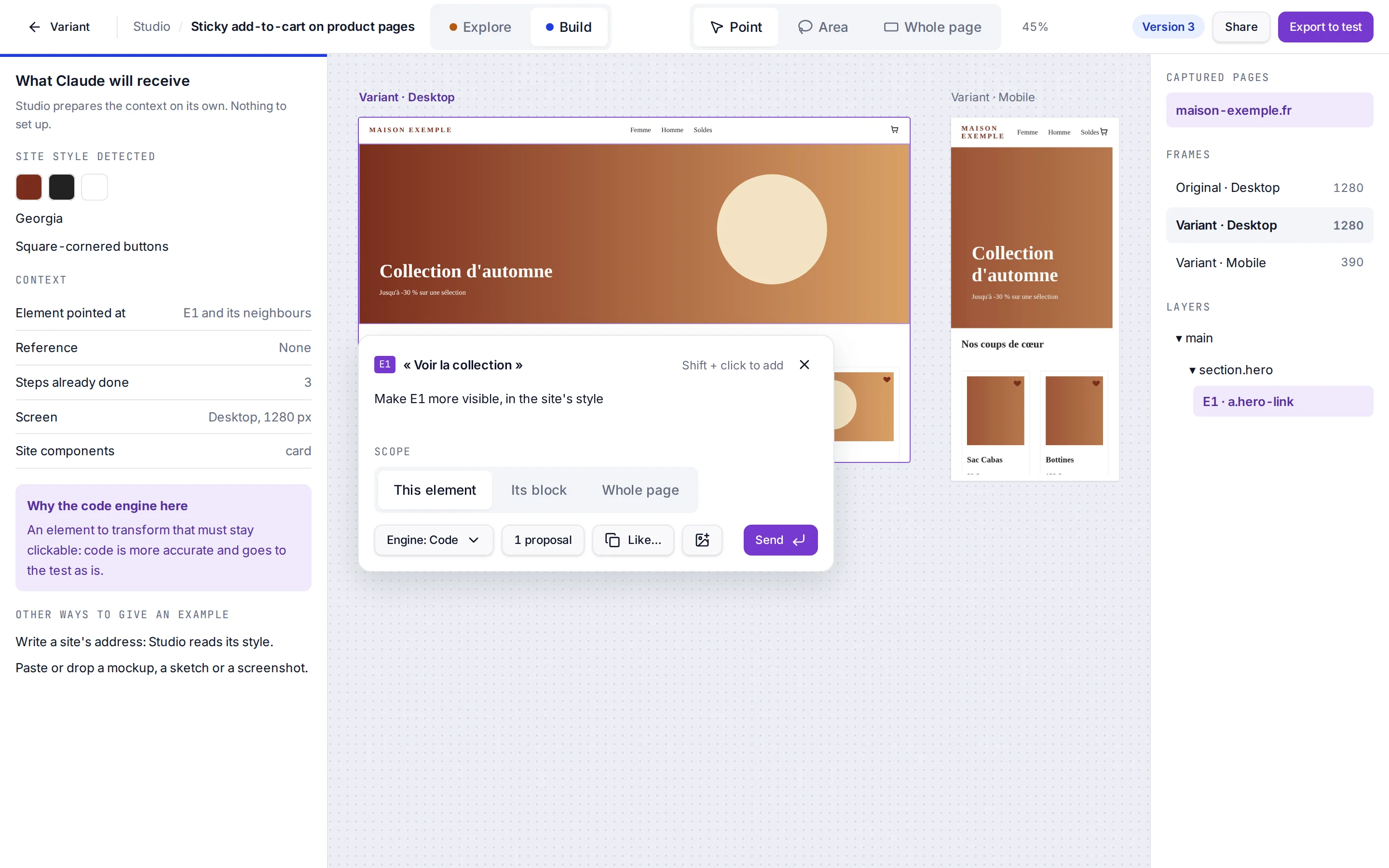
- Target an element Optional. With Point, click it on the copy: it is attached as E1, and Shift+click adds E2 and E3 (the cross removes one). With Area, draw a rectangle around a whole block (a banner, a product card, the header) and Variant attaches the block that holds what you drew around, shown as a "zone"; Shift adds another one.
- Describe the change Type it in the box that opens next to the element, or in the request box at the bottom of the Ask tab, then Send. For example: "make E1 black with larger text" or "add a free delivery banner under the menu".
- Wait for the step It shows on the copy after about 30 seconds to a minute. If something is unclear, Claude asks a question with answers to click.
- Refine Each request becomes a draft step, applied on top of the previous ones. Ask again to adjust it ("smaller", "rather in navy").
- Add to the variant Under the request box, once there is something to add. This saves the steps in the variant: the Steps tab, conversation and exported code are updated.
Good to know when targeting and asking:
- Safe clicks. Links and buttons do nothing on the copy, so you can click them safely.
- Whole page. Without an element (or with Whole page), the request applies to the whole page.
- Scope. In the box next to the element, Scope widens the request to Its block (the block around the element) or the Whole page. Esc closes the box; it sends the same request as the panel.
- What Claude will receive. While the box is open, the right panel shows the colours, fonts and buttons the Studio read on the copy, and the context sent with the request.
- Examples. Paste or drop a screenshot of another site, a mockup or a sketch, or use + Image (up to three, shown as R1 to R3). Claude follows the idea in your site's style, without copying the other brand.
- Another site's style. Write a site's address in the request (URL starts one, "like the search bar on https://…"), and Variant reads that site's style and takes it into account.
- How the code is written. Claude reads the page's design on the copy (fonts, colours, buttons, the elements you attached) and writes the step's code, as the extension does.
Once the steps are added, you don't need to open the site: next time you open the page with the side panel (extension 0.10.1 or later), it picks up these steps and applies them.
Manage draft steps#
Draft steps are listed in the History tab, after the variant's saved steps, and under Recent requests.
- The bin removes a step, and Undo the last step removes the last one.
- View the code shows the code.
- Flagged in red. A step whose element is not found on the copy.
- Original · Desktop always shows the page without the Studio's changes, to compare.
Three proposals#
In the box next to the element, select 3 proposals (next to the engine) before Send. You get three different answers to the same request: a faithful one, a bolder one and a different approach.
They are shown as cards, A, B and C, cropped around what you aimed at, with Desktop and Mobile to switch the view. The chosen one has a Before / after card (drag the handle).
- Choose picks another one, and Mix with A keeps A and asks for what is good in another one.
- Refine. The right panel holds the conversation: use More subtle, More visible or 3 more ideas, or type a new request, which starts from the one chosen.
- Add A to the variant keeps it and saves it, and Discard all drops them.
Make it like another site#
Redo a component the way another site does it, such as a search bar, a gallery or a booking summary.
- Keep the component On that site, open the side panel, choose ··· › Keep an element as a reference (before extension 0.13.0, Keep as reference at the top), click the component, name it and select Save to my references. This needs extension 0.11.0 or later, connected to the app.
- Pick your element Back in the Studio, pick your own element.
- Attach the reference Like… (next to + Image) lists My references for the whole workspace. Use attaches one as R1 (after any example images), shown as Like · its name with Structure and behaviour from R1 · look from your site.
Writing the site's name in the request ("make it like Staylane") also offers its saved component (Attach it). The bin in My references deletes a saved component.
Claude takes the reference's structure and behaviour (fields, order, date picker, counter, suggestions) and every visual choice from your page (fonts, colours, radii, buttons and existing classes). It never copies the other site's colours, fonts, logo or wording, and your page's own form stays wired, so the search still works.
- With 3 proposals, they become A · Faithful to R1, B · R1, simplified and C · Hybrid (your current component with the best ideas of R1).
- Brand fit. The visual check also scores whether it looks like your site, not like the reference, next to Visual. A step that copied the reference's look is corrected and marked Corrected once: looked like the reference.
Image concepts#
For a big change, such as a whole section redone or a new page concept, switch the engine from Code to Image, then select Explore as an image. The engine is under Engine in the box next to the element, or in the Code menu at the top of the panel's request box.
The same request, with its elements, areas and example images, makes an image concept in about a minute (1 or 3). A new concept opens large, next to the Original, marked Image preview, not clickable. It is made from the copy as shown, without the Studio steps not added yet (or from the After screenshot when the copy cannot be drawn).
- Convert to code. In the right panel, Claude reproduces the concept on the real page as a new step, with its progress (read, write, compare). What could not be reproduced is listed under Gaps flagged.
- 2 more concepts makes two others from the same request, and Export as PNG downloads it.
- Another big change. A request box at the bottom of the canvas asks for one.
- All frames goes back to the canvas, where the concept stays as an image frame (Open, Compare over Variant · Desktop, or the cross to remove it).
Visual check#
After each new step (and the proposal you keep), Variant draws the copy and has Claude check the result against your request, like the side panel does. It looks for overlapping elements (a field over the logo), cut text, or a change the step claims that is not on the page.
When something is wrong, the step is redone and the correction checked again, up to 2 corrections. Each attempt is scored and the best one is kept. A new request waits until the check is done.
| Label | Meaning |
|---|---|
| Checked on the copy | Nothing was wrong. |
| Corrected after visual review | Fixed, with what was fixed. |
| Still needs work after 2 corrections | What is left: check the copy or rephrase. |
| Visual check unavailable | The check could not run: look at the result on the copy yourself. |
Pictures from other sites that cannot be read appear grey in the check, which is not counted as a problem.
Fix the test#
Once a request has made a step in the Studio, the request box fixes the version you see instead of starting another change. It says Fixing version N and its button Fix version N; Start a new change instead goes back to a new request, and Back to version N removes the last step.
- Say if it works After each step, Does this version work for you? offers Looks good or To fix.
- Add notes To fix (or Notes above the request box) turns on notes. Click up to three elements of the copy: each gets a numbered pin, red To fix or green To keep (switch it on the note), and a line where you write what is wrong.
- Send the fix Your notes, your text and any example image you paste go in one request.
Claude only adds the code that corrects this version and leaves what is marked to keep untouched. The result is the next version, shown as Version N in the top bar.
Quick edits#
Quick edits, in the Properties tab, change an element without AI. Click the element, then change its:
- Text, then select Apply.
- Image, with an address starting with https:// or Upload image.
- Style: text colour, background, size in px, Bold.
- Or select Hide this element.
They are free, show straight away and are added as one more step. An edit that can no longer find its element is marked not found in the copy.
Export to test#
Export to test opens the export panel:
- The variant to send, with its number of steps.
- Checks. Steps saved, Studio changes not added yet, steps replayed on the copy without errors.
- Open the code to export. The variant's Code tab, with the code for your A/B testing tool.
- Copy the Studio link.
Quotas and drafts#
- Requests. Each request counts as one request of your monthly allowance (hover Send to see it), like a request in the side panel; with 3 proposals, it counts as three. Convert to code counts as one request.
- Images. Each image concept counts as one image of your monthly image allowance.
- Free. Reading a site named in the request and the visual check.
- Drafts are kept. Until you add them, your steps stay in this browser, with your quick edits, the request you are typing, the elements you picked, the proposals and the example images. Reloading the page brings them back.
When something goes wrong#
- Claude cannot answer. The message offers Retry, and your drafts are kept.
- New version available. Shown at the top of the canvas when Variant is updated while the Studio is open. Reload (drafts kept) loads it without losing your work.
- Memory running short. On a very large page, the Studio says so and pauses the pictures of the other frames; the frame you work in keeps working.
- A frame cannot be shown. Reload this frame opens it again.
Steps#
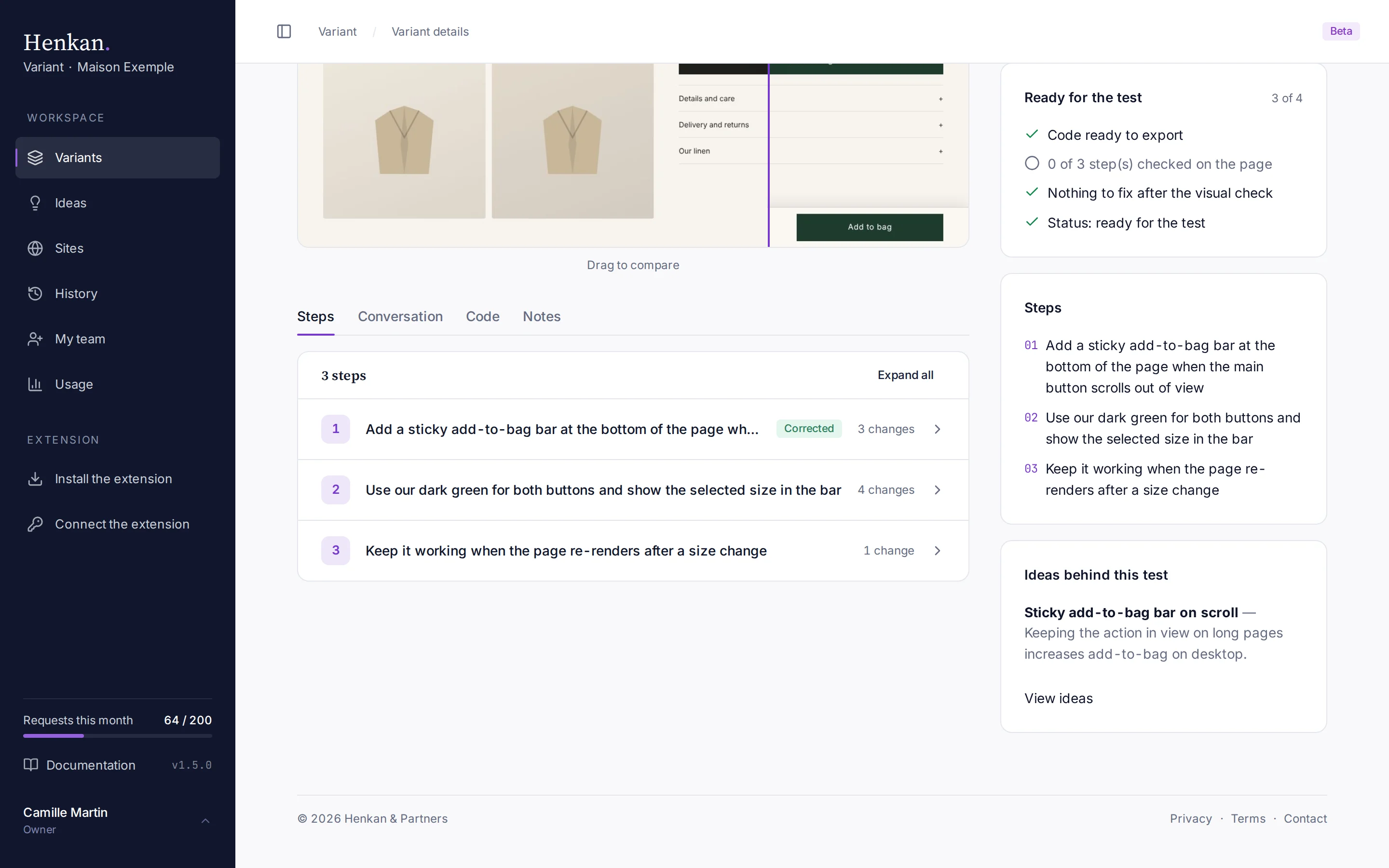
The Steps tab lists each request you made in the extension, one line per step, in order. Each line shows the request, a Corrected label when Variant fixed its own work, and the number of changes.
Select a line to see the screenshot of the page right after that step (extension 0.9.0 or later), a summary and every change. Select the screenshot to open it full screen, or Expand all to open every line.
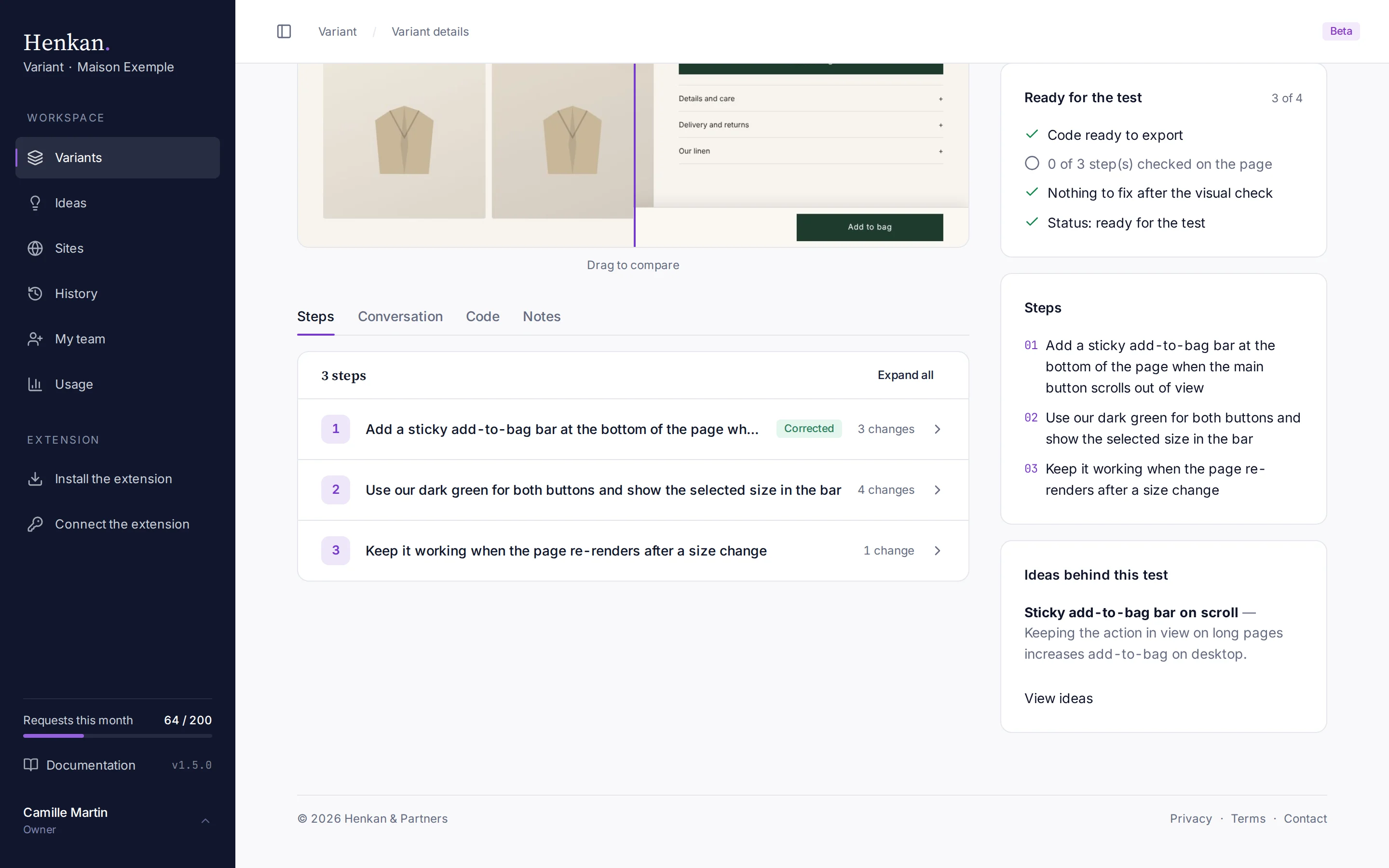
A step you removed in the extension shows the Removed step label.
Conversation#
The Conversation tab shows the full exchange with Variant, grouped by step.
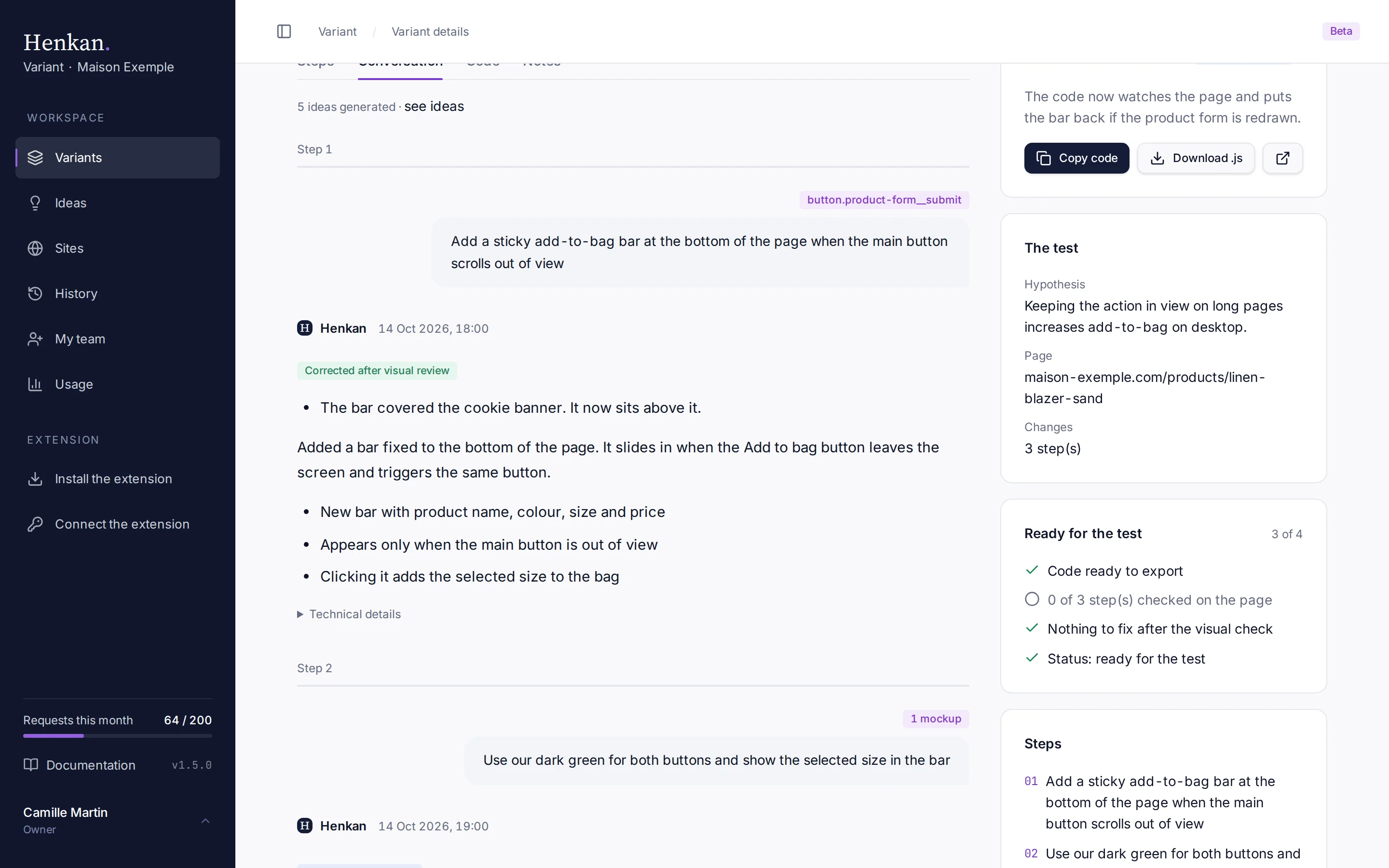
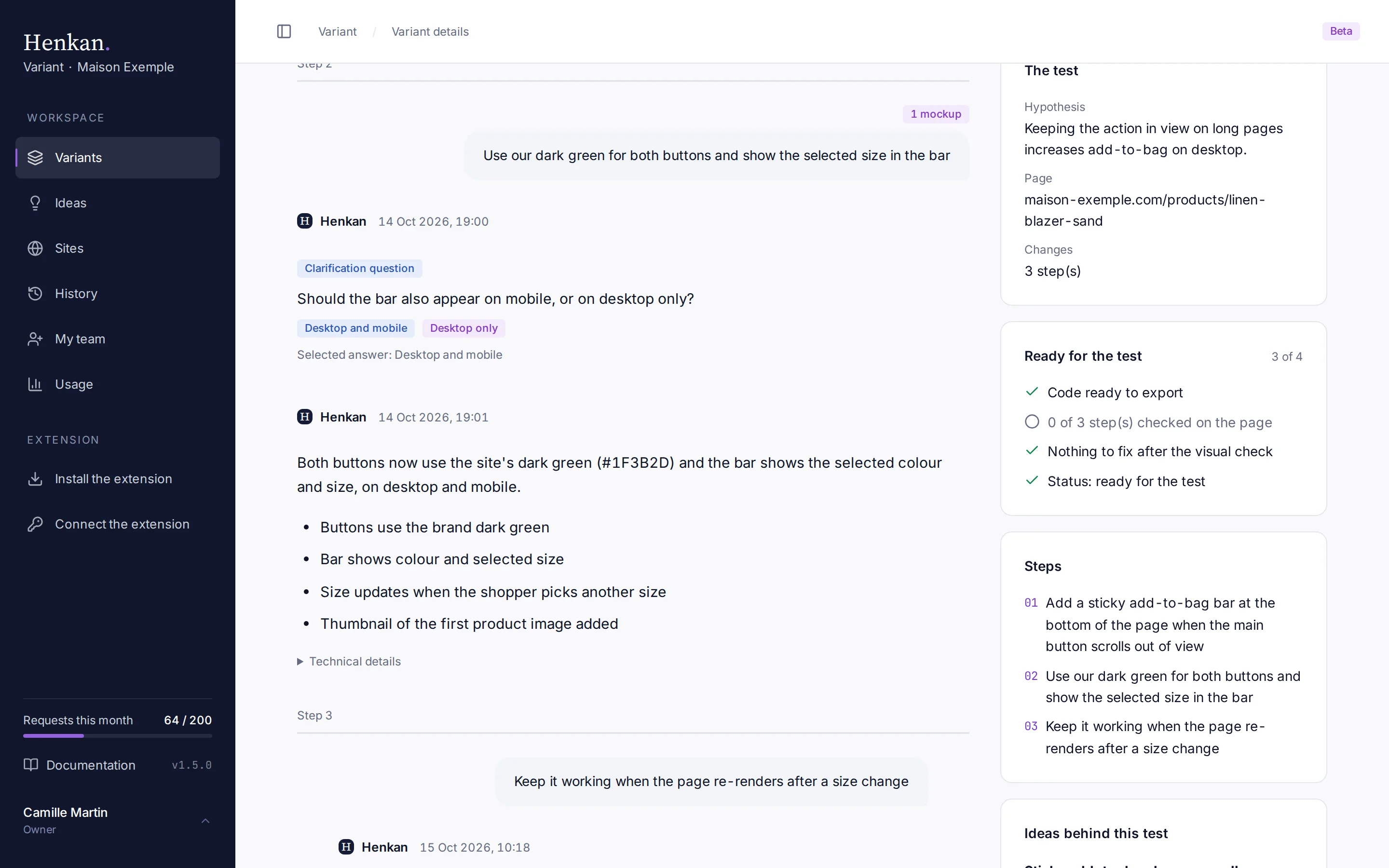
Under each answer, Technical details shows how many changes Variant verified and how long the step took. Errors show an Error label; when a later step succeeded, they are collapsed as Resolved error.
Code#
The Code tab holds the complete Variant code to paste into your testing tool, and the CSS and JavaScript of each step under Step code. See Export the code.
Notes#
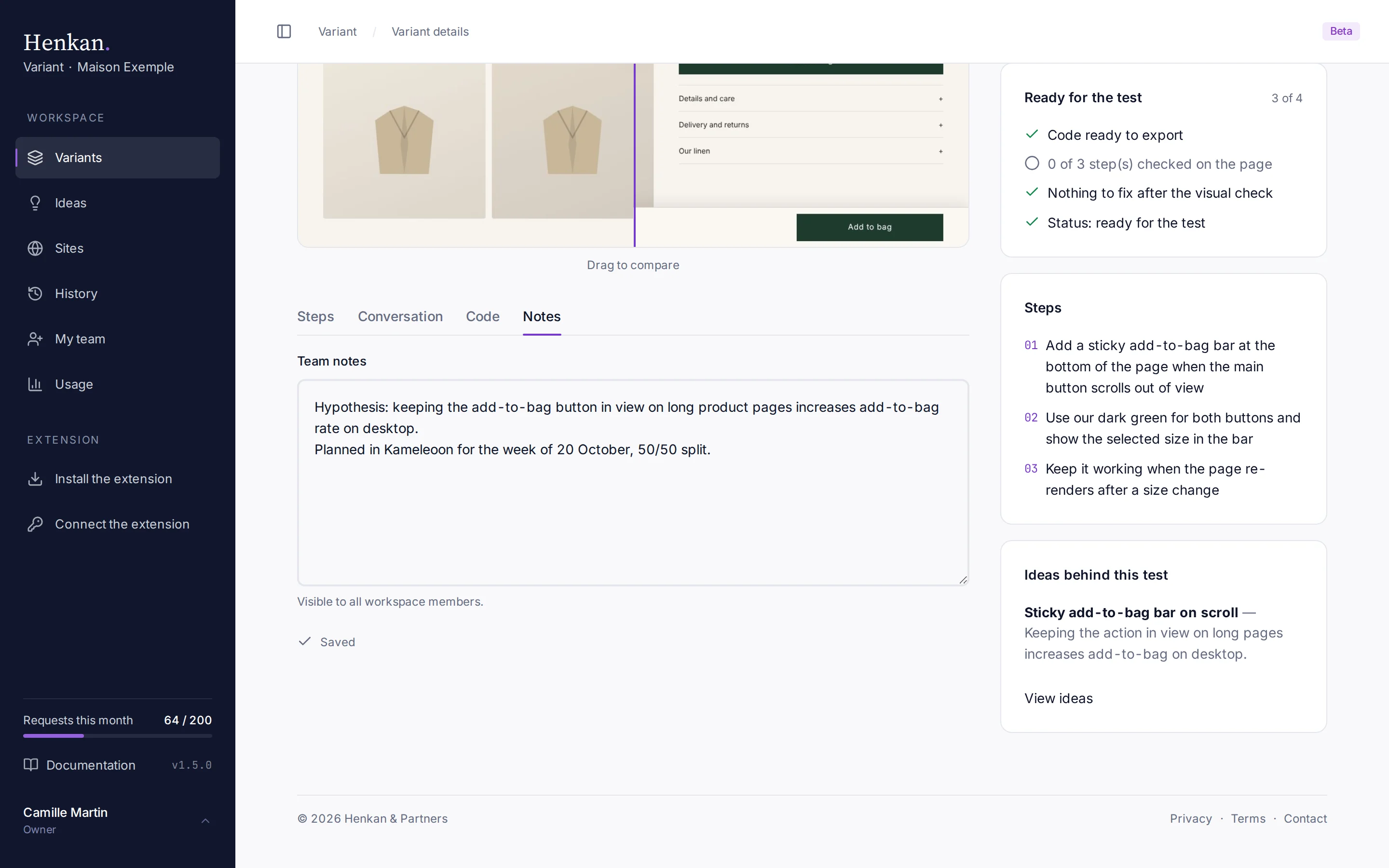
The Notes tab is a shared notepad for the variant: hypothesis, test results, points to validate.