Install the Henkan Variant extension from the Chrome Web Store, like any other Chrome extension. It takes about two minutes on a computer with Google Chrome.
The same guide is in the app: select Install the extension in the sidebar.
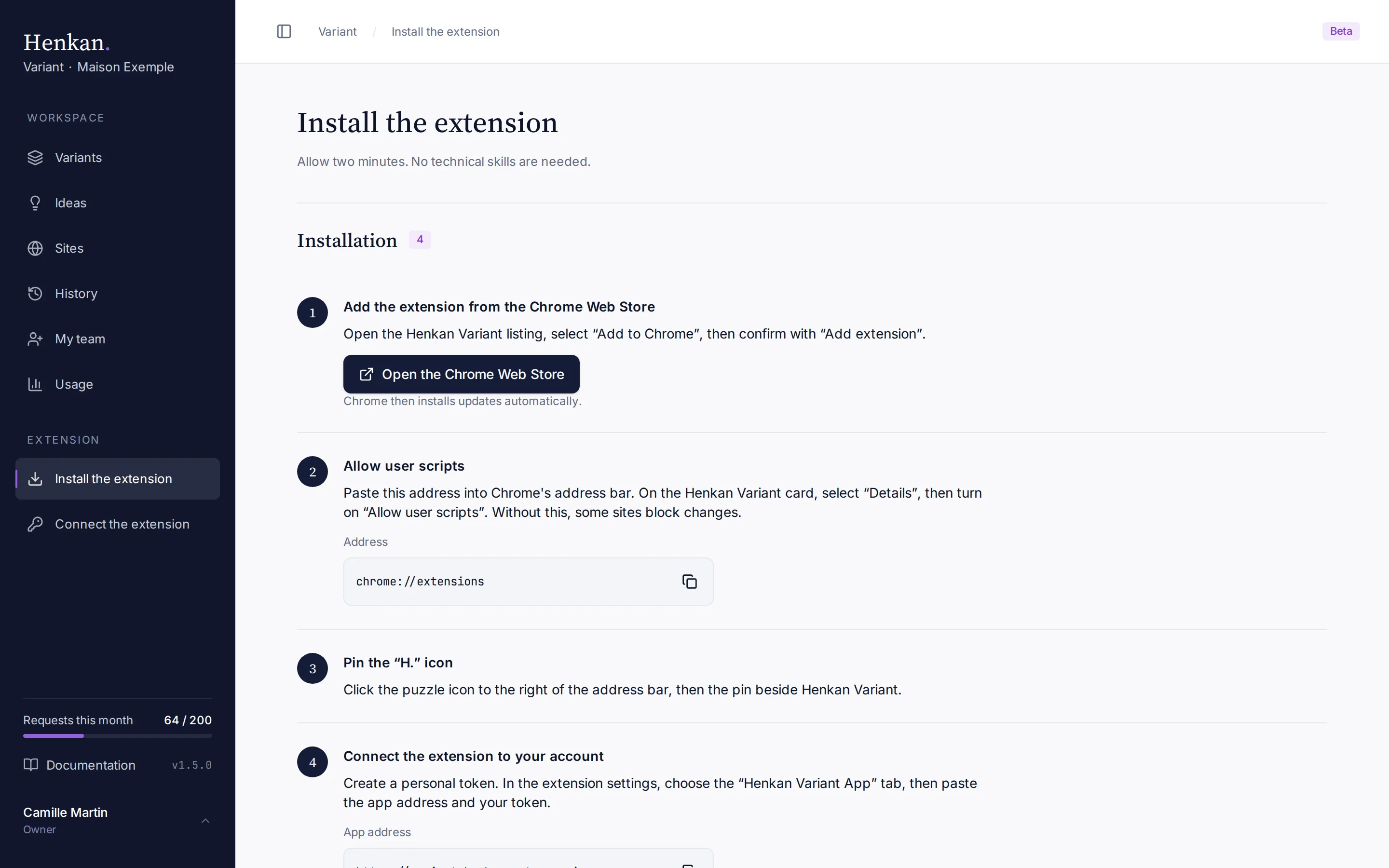
1
Open the Chrome Web Store. Opens the Henkan Variant listing in a new tab.
2
Allow user scripts. Lets the extension apply changes on sites that block external scripts.
Install in four steps#
- Add the extension Select Open the Chrome Web Store, then Add to Chrome, and confirm with Add extension.
- Allow user scripts Paste
chrome://extensionsinto Chrome's address bar (the guide has a copy button). On the Henkan Variant card, select Details and turn on Allow user scripts, otherwise some sites block changes. - Pin the "H." icon Select the puzzle icon to the right of the address bar, then the pin next to Henkan Variant.
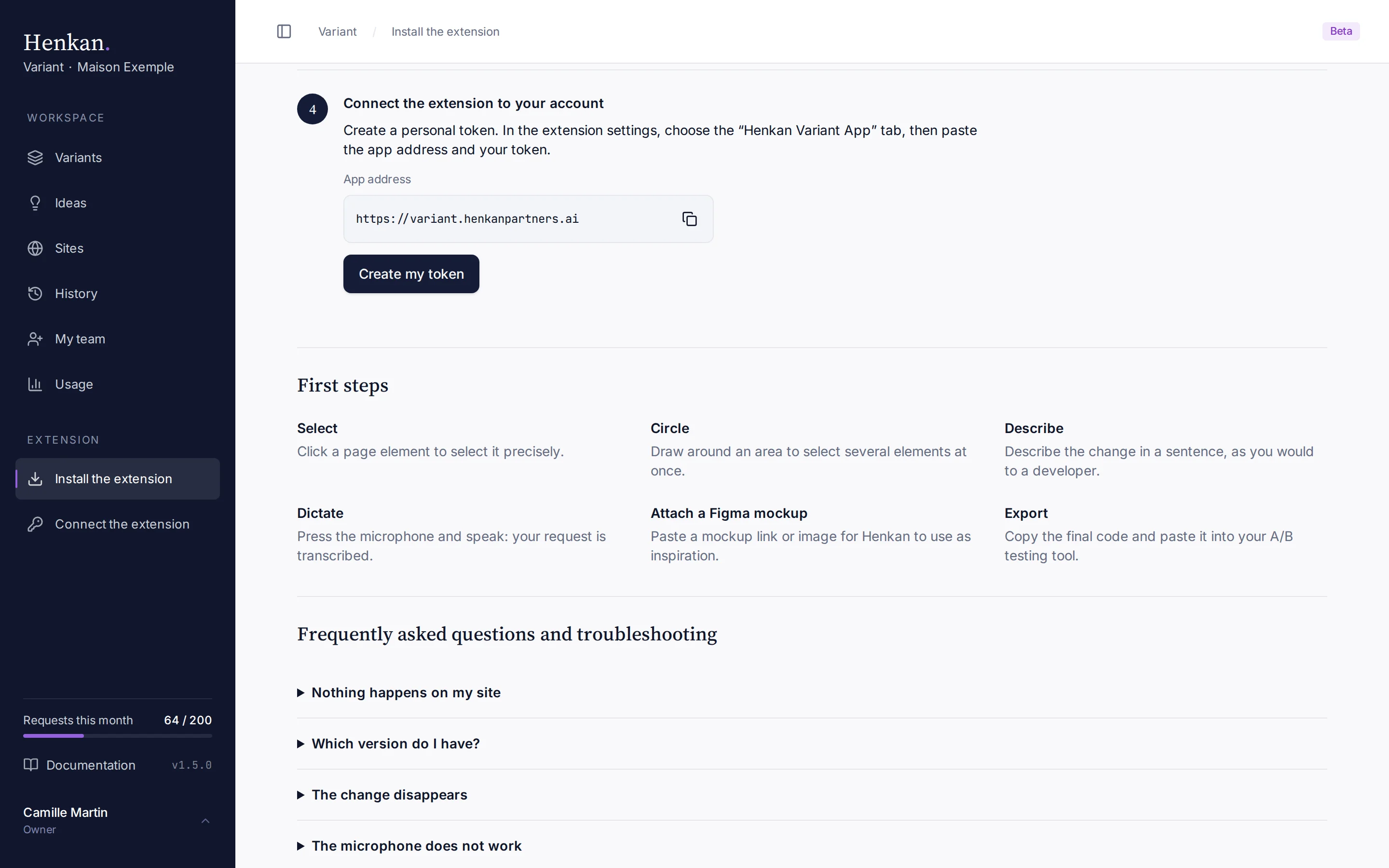
- Connect your account Create a personal token and paste it, with the app address, into the extension settings, in the Henkan Variant App tab. See Connect the extension.
1
Connect the extension to your account. Shows the app address to paste, with a copy button.
2
Create my token. Opens Connect the extension.
3
First steps. Sums up what you can do in the side panel.
Updates#
Chrome updates the extension automatically, usually within a few hours of a new release. The version is shown below the extension's logo, for example "Variant Beta v0.3.0".
To force an update, open chrome://extensions, turn on Developer mode at the top right, then select Update.
If something goes wrong#
| Problem | What to do |
|---|---|
| Nothing happens on my site | Some sites block external scripts (CSP policy). Check that Allow user scripts is on in the extension's Details, then reload the page. |
| The version is not the latest | Open chrome://extensions, turn on Developer mode and select Update. |
| Still stuck | Email your Henkan consultant with a screenshot of the extensions page. |
More fixes are in Troubleshooting.