The Sites page keeps one site profile per site or brand you work on. Claude gets the profile with every request for that site in the Studio, so changes look like they belong there.
What a profile holds#
A profile is the site's own design system, as the browser sees it:
- Look. Its colour variables, fonts, corners and spacing.
- Components. The ones it already has (buttons, fields, cards, accordions, modals…), with their real classes.
- Copy. A few lines of its text.
- Rules. The ones your team adds.
The visual check also uses the profile, to judge whether a result looks like the site.
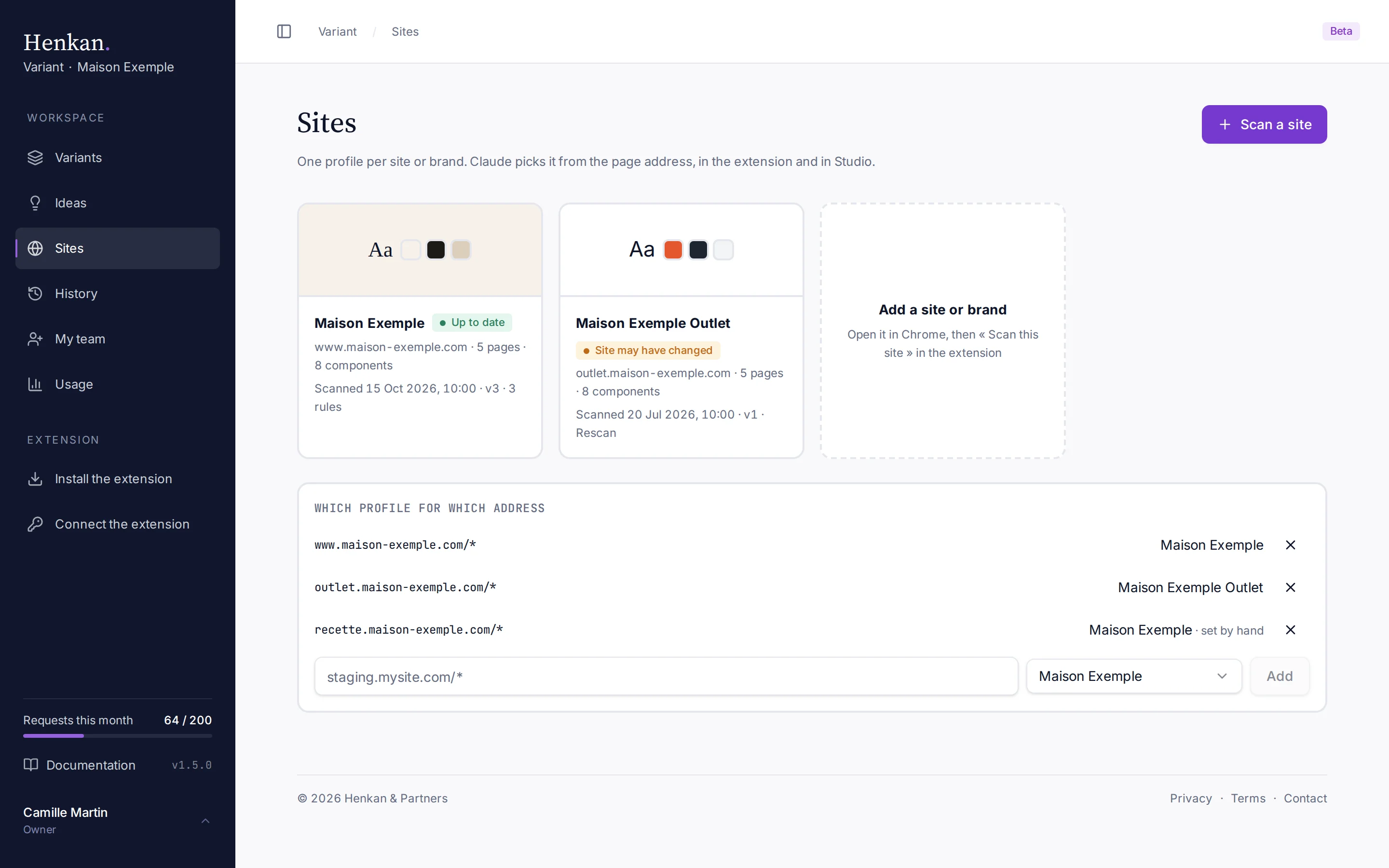
A profile marked "Site may have changed" was last scanned more than 45 days ago: rescan it from the extension.
Scan a site#
The scan runs from the extension, in your own browser and with your session.
- Open the home page Open the site in Chrome, on its home page.
- Start the scan Open Henkan Variant, then ··· › Scan this site (extension 0.13.0; before, under the Keep as reference tab).
- Let it read the site The extension reads up to 6 page types in background tabs, then sends the profile here. Use + Add the page I'm on to include a page it would not find by itself.
The 6 page types are the home page, a listing or search, a detail page, the cart or selection, a form, and one more. The scan never submits a form, never clicks, and never opens checkout, payment, account or sign-out pages.
Scanning the same site again adds a new version (v2, v3…). The last 10 scans stay in the profile's history.
Read and complete a profile#
Select a profile to open it.
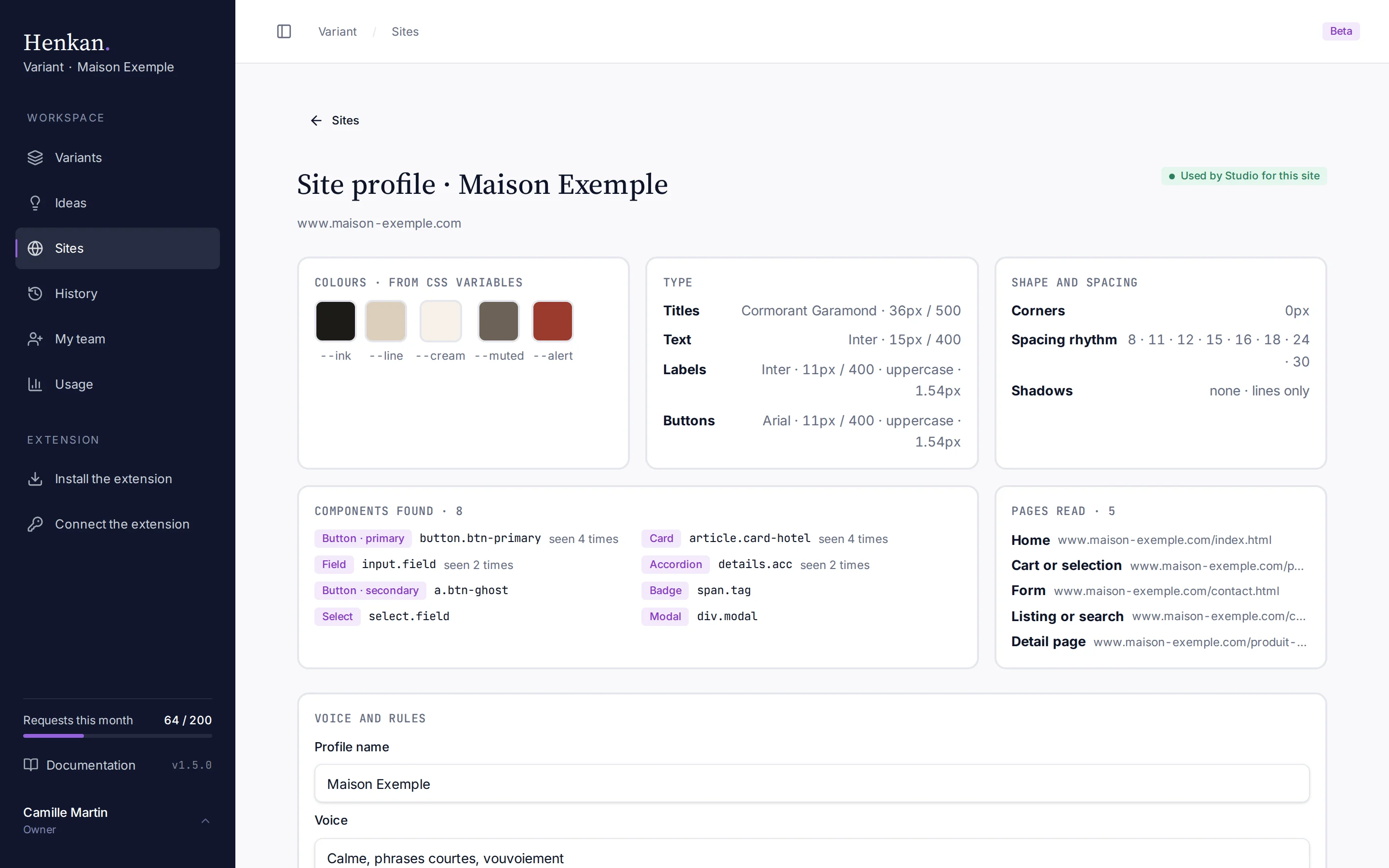
- Voice and rules. Name the profile, describe the tone (for example "calm, short sentences, formal 'vous'") and add up to 20 rules, such as "prices always start with 'from'". Voice and rules are the only parts your team writes.
- Delete the profile. Hides it: pages that used it no longer get a profile.
In the Studio#
Above the request box, Site profile · name vN shows which profile Claude gets for this page. Change picks another profile for this exact page, or goes back to the automatic choice from its address.
With no profile, the row links here so you can scan the site.