Manage your name, password and language from one window. Select your name at the bottom of the sidebar, then My account (or go to /account).
Account menu#
Select your name at the bottom of the sidebar. The menu shows your name and email, then:
- My account. Opens your account settings.
- Henkan Account. Lists the tools open to your team.
- System status. Shows "All good", or which tool is slow or down, checked each time you open the menu. It opens the public status page.
- Documentation. Opens this documentation.
- Language. Switches between English and Français; the current one is shown on the right.
- Sign out. Signs you out of the web app.
Documentation and the version number (which opens the changelog) are also at the bottom of the sidebar, just above your name.
My account#
Your account settings open in a window over Variant.
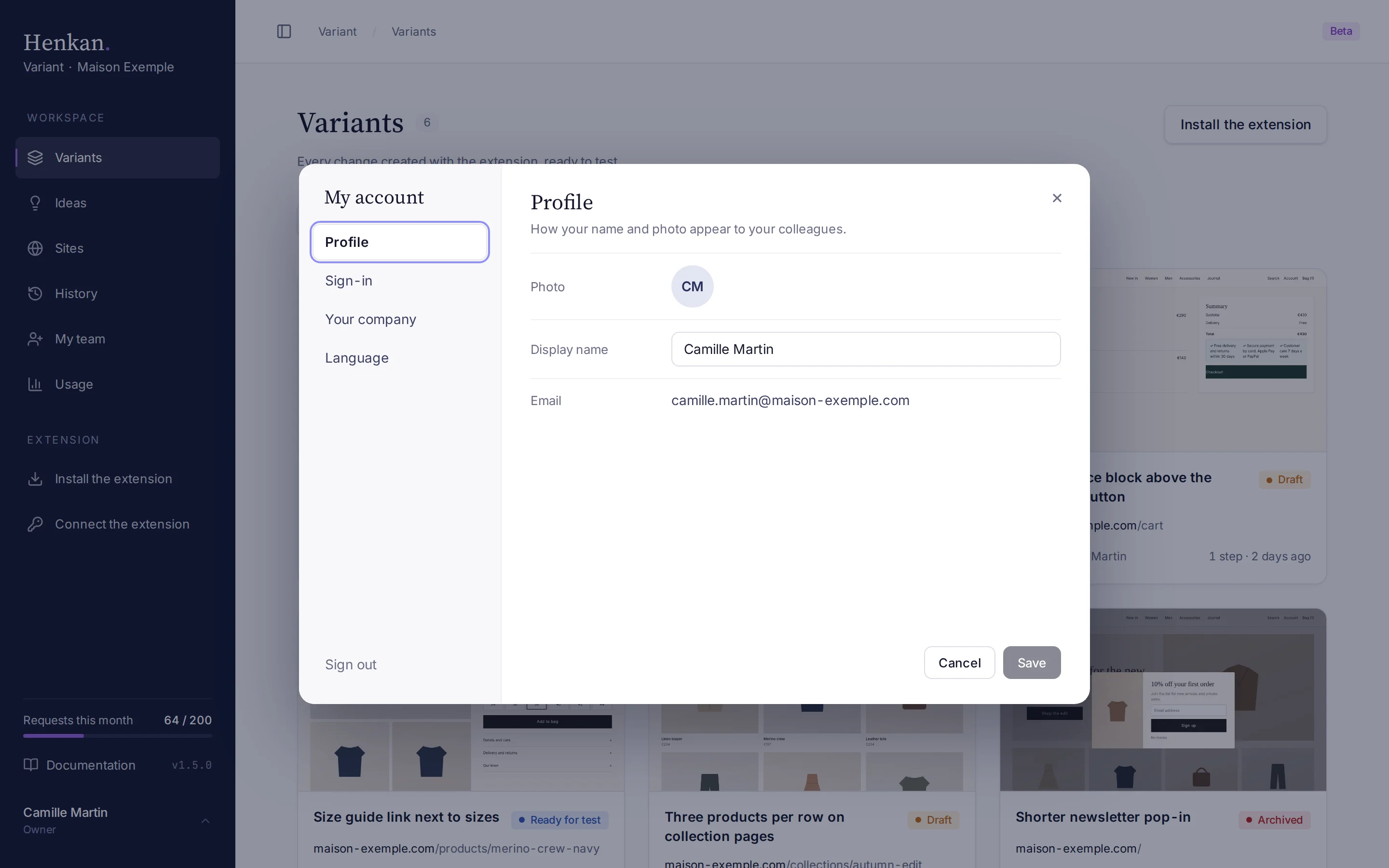
| Tab | What you can do |
|---|---|
| Profile | Change your Display name and select Save. Your Email cannot be edited here: to change it, contact Henkan. Your Google photo is shown if you have one, otherwise your initials. |
| Sign-in | With an email and password: enter your Current password, a New password of at least 8 characters and confirm it, then select Save. With Google, there is no password to manage here. |
| Your company | The company your access comes from (Henkan consultants see Henkan & Partners · Internal) and its Henkan tools. Henkan manages access; Henkan Account opens the full list. |
| Language | Choose English or Français and select Save. The choice is saved to your account. |
Press Escape, select × or click outside the window to close it; Cancel drops what you changed. The old Settings address now opens this window.
Switch between Henkan tools#
Select the Henkan. logo at the top of the sidebar, with Variant · your workspace underneath. Its menu has two sections:
- Tool. The Henkan tools your company uses (Vision, Chat, Research, Variant), with Variant checked. Select another to open it in the same tab; each tool has its own sign-in with the same email.
- Organisation. Your client workspaces (and All workspaces when you have several), with a check next to the current one.
A section with a single choice is not shown. If your company uses only Variant and you have one workspace, the logo is not a menu.
Sign out#
Select Sign out at the bottom of the My account window, or in the account menu under your name.
Signing out of the web app does not disconnect the extension, which uses its personal token. To disconnect it, revoke the token in Connect the extension.
Delete your account#
To delete your account or variants, write to alex@henkanpartners.com. See Security and privacy.