In about ten minutes, you go from your first sign-in to a variant ready for your A/B testing tool. Most of that time is the extension install.
Before you start#
- An account with access. Henkan grants it. See Getting access and signing in.
- Google Chrome on a computer. The extension runs in Chrome.
- A page you may change. Use a site you are allowed to modify or test.
1. Sign in#
The first time you sign in, Variant puts you in your company's shared workspace. If you are the first from your company, it creates that workspace for you.
You then see Welcome to Henkan Variant, with three steps. You can come back to each one later from the sidebar.
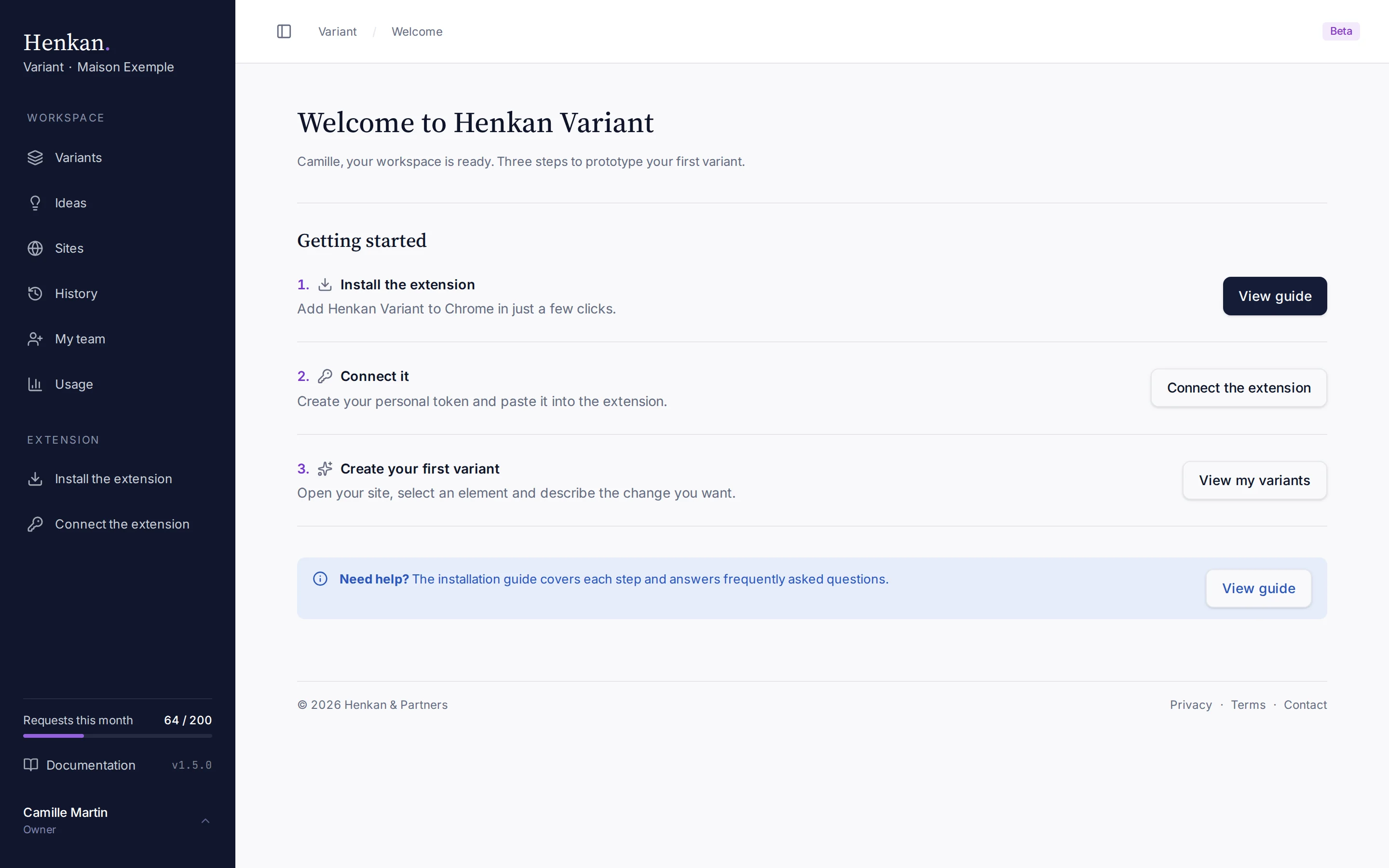
1
View guide. Opens the installation guide.
2
Connect the extension. Opens the page where you create your personal token.
3
View my variants. Opens the Variants page, where your variants will appear.
2. Install the extension#
- Add it to Chrome Open Install the extension in the sidebar, select Open the Chrome Web Store, then Add to Chrome.
- Allow user scripts On the Henkan Variant card, select Details and turn on Allow user scripts.
- Pin the icon Pin the "H." icon next to the address bar, so the extension is one click away.
The full walkthrough, with screenshots, is in Install the extension.
3. Connect the extension#
- Create a token Open Connect the extension, enter a Token name (for example your computer's name) and select Create token.
- Copy it now The token is shown only once. Copy it together with the App address.
- Paste and verify In the extension settings, open the Henkan Variant App tab, paste the address and the token, then select Verify.
Details are in Connect the extension.
4. Create your first variant#
- Open your site Go to the page you want to change and open the Henkan Variant side panel.
- Point at the element Select the element to change, or circle an area.
- Describe the change Write one sentence, as you would to a developer. For example: "Add a sticky add-to-bag bar at the bottom of the page when the main button scrolls out of view".
- Review and refine Variant applies the change and checks the result visually. Ask for adjustments in new messages: each one becomes a new step.
See Create a variant in the side panel.
5. Export the code#
- Open the variant In the web app, it appears on the Variants page automatically.
- Copy the code Select Copy code, or Download .js to keep a file.
- Paste it in your tool Paste it into the variation JavaScript of your testing tool.
See Export the code.