A personal token links the extension to your account and to one workspace. Once connected, every variant you make is saved in the web app for your team, and you never need a Claude API key.
Create a token#
Open Connect the extension in the sidebar.
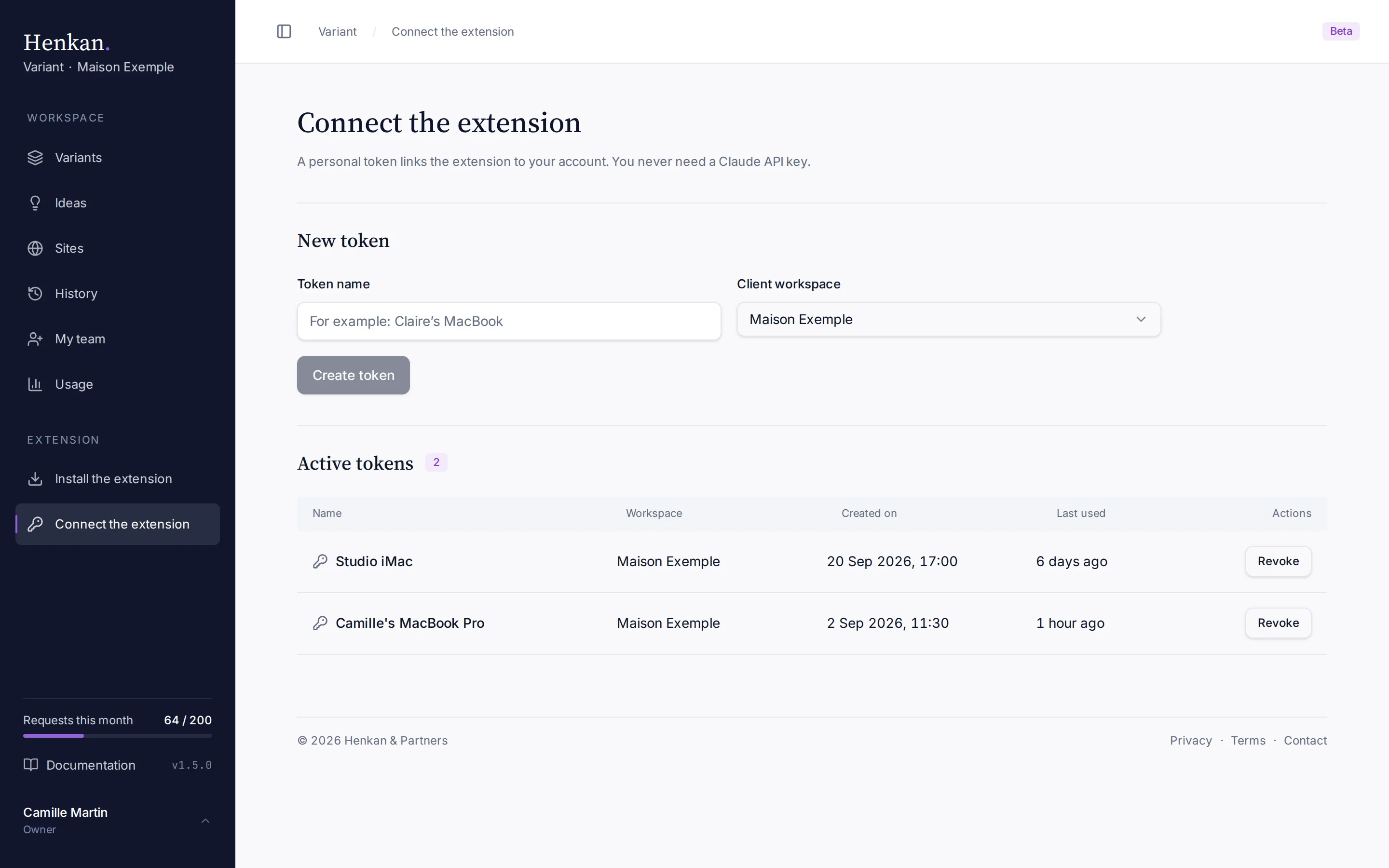
- Name the token Enter a Token name of up to 80 characters, for example "Camille's MacBook Pro".
- Choose the workspace Pick the Client workspace to save to. With one workspace, it is already selected; with several, your company workspace is suggested.
- Create it Select Create token.
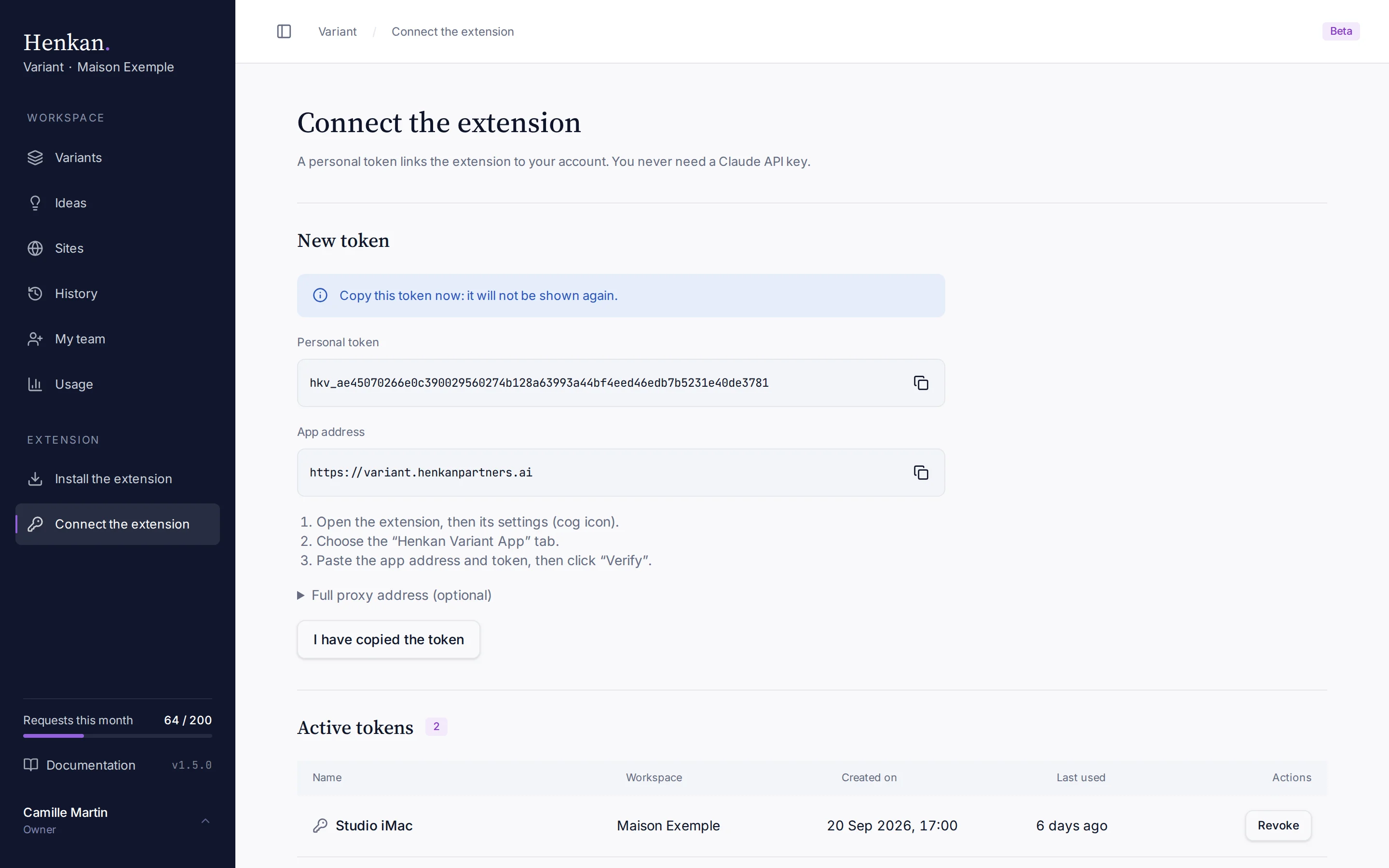
- Copy it now Copy the Personal token and the App address, then select I have copied the token. The token is never shown again.
Paste it into the extension#
| Marker | What it is |
|---|---|
| 1 | Henkan Variant App tab. The tab that connects the extension to the web app. |
| 2 | App address. Where you paste the web app's address. |
| 3 | Personal token. Where you paste your token. |
| 4 | Verify. Checks the connection. |
- Open the settings Open the extension, then its settings (cog icon).
- Choose the app tab Select the Henkan Variant App tab.
- Paste and verify Paste the app address, then the token, and select Verify.
If you need the full proxy address (the app address followed by /api/public/claude-proxy), it is under Full proxy address (optional) after you create a token.
Manage your tokens#
Active tokens lists every token that still works.
| Column | Meaning |
|---|---|
| Name | The name you gave the token. |
| Workspace | The workspace the token saves to. |
| Created on | When the token was created. |
| Last used | The last time the extension used it, or Never. |
Create one token per computer, so you can revoke one without disconnecting the others.
Revoke a token#
- Find the token In Active tokens, find its row.
- Revoke it Select Revoke, then confirm with Revoke in the dialog.
The extension that uses it is disconnected at once. Revoking cannot be undone: create a new token to reconnect.
If a token is lost or exposed, revoke it straight away and create a new one. Henkan stores tokens only as a one-way fingerprint, so nobody can display a lost token again, not even Henkan.
Switch to your company workspace#
A token always saves to the workspace chosen when it was created. If your extension still saves to an older personal workspace:
- Create a new token Choose your company workspace as the Client workspace.
- Paste it in the extension Replace the old token in the Henkan Variant App tab.
- Revoke the old one Select Revoke on its row.
Connecting without a token#
The extension can also send requests straight to Anthropic with your own Anthropic API key. In that mode, nothing is saved in the web app and your team does not see your variants.
Use a personal token unless Henkan advises otherwise.