A workspace is the shared space of one client team. Its members see every variant, idea series and note in it, and share its monthly quotas.
Your company workspace#
Each client company has one workspace, linked to the company Henkan set up in Henkan Account. Colleagues Henkan has given access to join it on their own the first time they sign in, with no invitation needed:
- The first one creates the workspace, named after the company, and becomes its Owner.
- The next ones join as Client members.
Henkan can then change anyone's role in Henkan Account (see Roles).
Personal workspaces are no longer created. If you had one before, it stays available with its variants and its own usage: switch to it with the Client workspace selector.
Roles#
| Role | What they can do |
|---|---|
| Owner | Everything a member can do, plus invite colleagues, resend or cancel invitations and remove members, from My team. |
| Client member | See and create the workspace's variants and ideas, change statuses, write notes, create their own personal tokens. |
Roles of your company workspace are managed by Henkan, in Henkan Account: Variant has no button to change a role. Wherever a role is shown (My team, Team & clients), it reads Role managed by Henkan. When Henkan changes your role, Variant picks it up within about two minutes, or as soon as you come back to the tab, without signing out. To change a role, ask your Henkan contact.
Your role is shown under your name at the bottom of the sidebar (for example "Owner"). The selected client workspace is shown under the Henkan logo at the top (for example "Variant · Maison Exemple").
Henkan in your workspace#
- Consultants. Henkan's consultants can work in your workspace to support you.
- Referents. The consultants Henkan names as your company's referents (your Henkan contacts, set in Henkan Account) are Owners of your workspace automatically. They leave it when Henkan changes your referents.
- Admins. Henkan admins manage teams and client workspaces from Team & clients, in the Admin group at the bottom of their sidebar, which only they see. They can add and remove people there, but not change a role: everyone they add joins as a member (a client member, or a Henkan consultant for a Henkan address), and Henkan Account sets the role. A workspace not linked to a company in Henkan Account (one created in Team & clients) has no role set by Account: there, the admin can invite its Owner (Role: Owner), and roles are shown without the "Role managed by Henkan" note.
Invite a colleague#
Only the workspace owner sees My team in the sidebar.
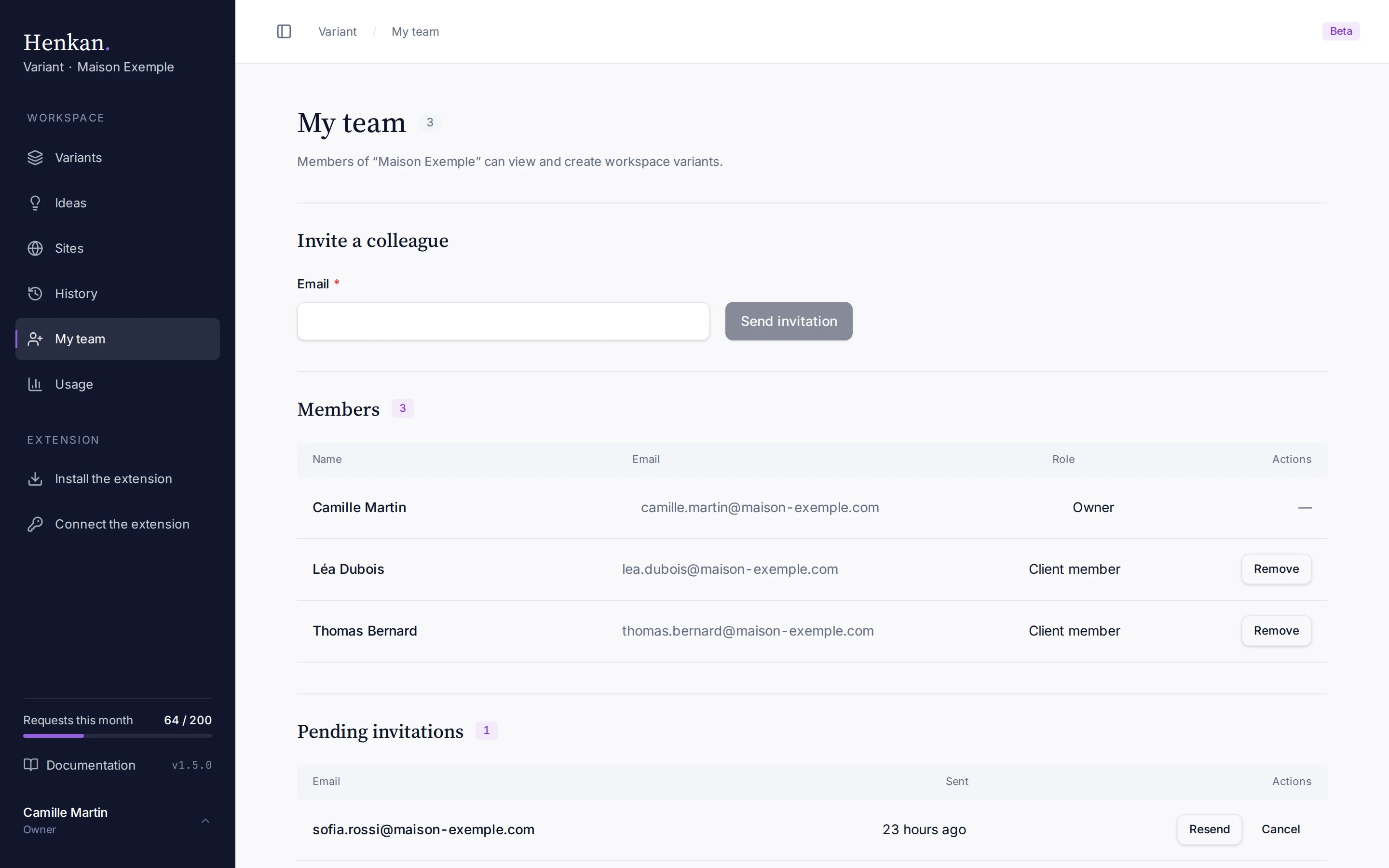
- Open My team In the sidebar, select My team.
- Enter their email Under Invite a colleague, type their Email.
- Send Select Send invitation. Your colleague gets an email with a link to activate their account and choose a password, and joins as a Client member.
If the person already has a Henkan Variant account, they are added straight away ("This account already existed and has been added to the workspace.").
You can also invite a Henkan & Partners consultant: they join as a Henkan consultant.
Manage invitations and members#
| Action | How |
|---|---|
| Resend an invitation | Resend on the invitation's row. |
| Cancel an invitation | Cancel on the invitation's row. |
| Remove a member | Remove on the member's row. Available for client members, not for yourself. |
Invitations expire after 14 days and then show Expired. Resend or cancel them as needed.
Several workspaces#
People who work with several client teams belong to several workspaces. They switch from the Henkan logo menu at the top of the sidebar, or pick All workspaces to see everything together.
A personal token always saves to the one workspace chosen when it was created.
Demo workspace#
Henkan may invite you to Acme, a demo workspace for trying Variant. A slim notice at the top reads Demo workspace — fictional data, resets nightly. Select × to hide it in this browser.
- Fictional data. Its variants, screenshots, conversations and idea series are made up, for a store on
acme-store.example. - Nightly reset. Everything goes back to its starting state every night after 03:00 Paris time.
- Smaller quotas. Its monthly quotas are lower than a client workspace's.
Every Henkan & Partners consultant is also a member of Acme, so they can open the demo with you. It appears in their workspace menu as Acme with a small demo tag, next to Henkan & Partners, which stays the workspace they land on.